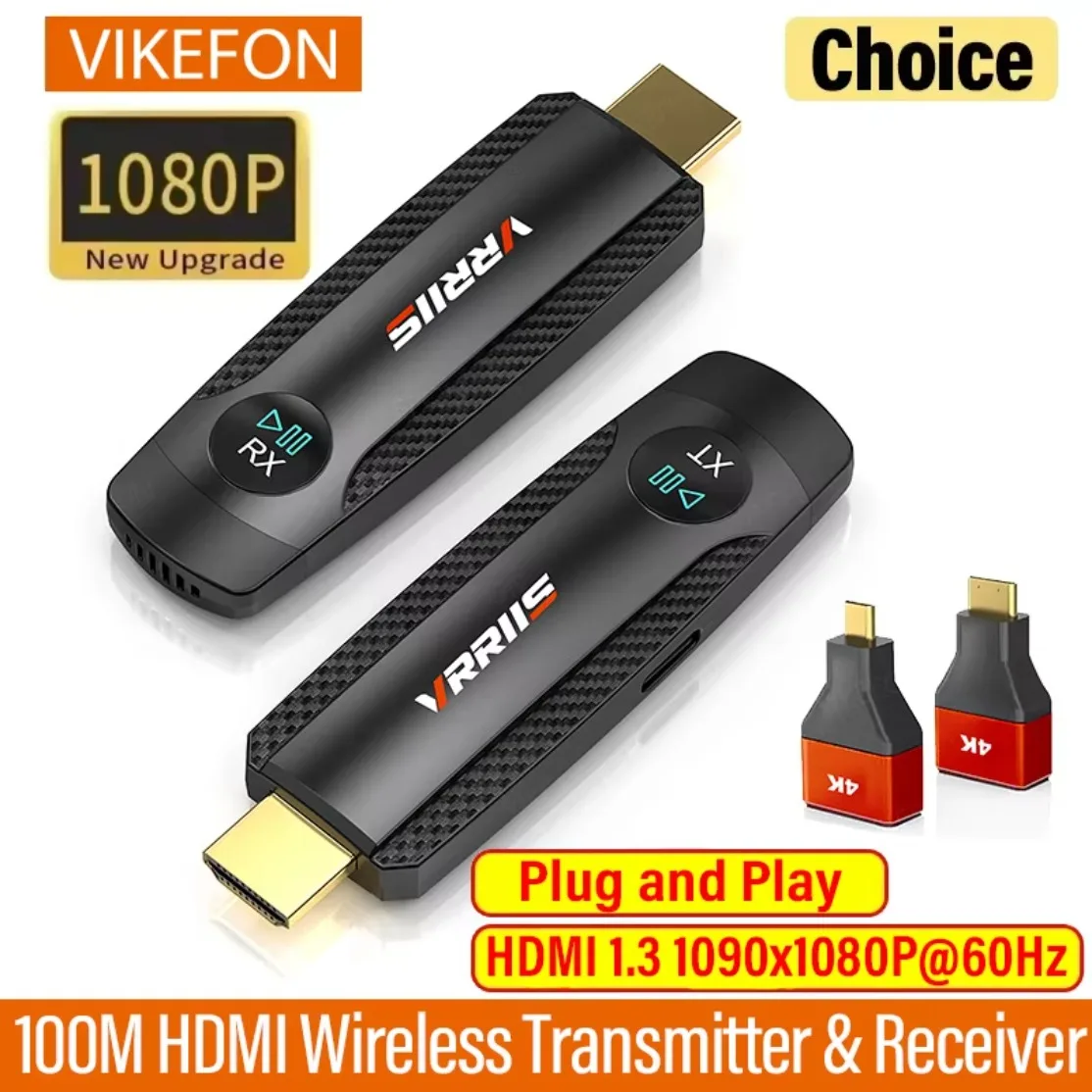

100M Wireless Video Transmitter and Receiver HDMI-Compatible Extender Display Adapter Cable Screen Mirror for Camera PC To TV
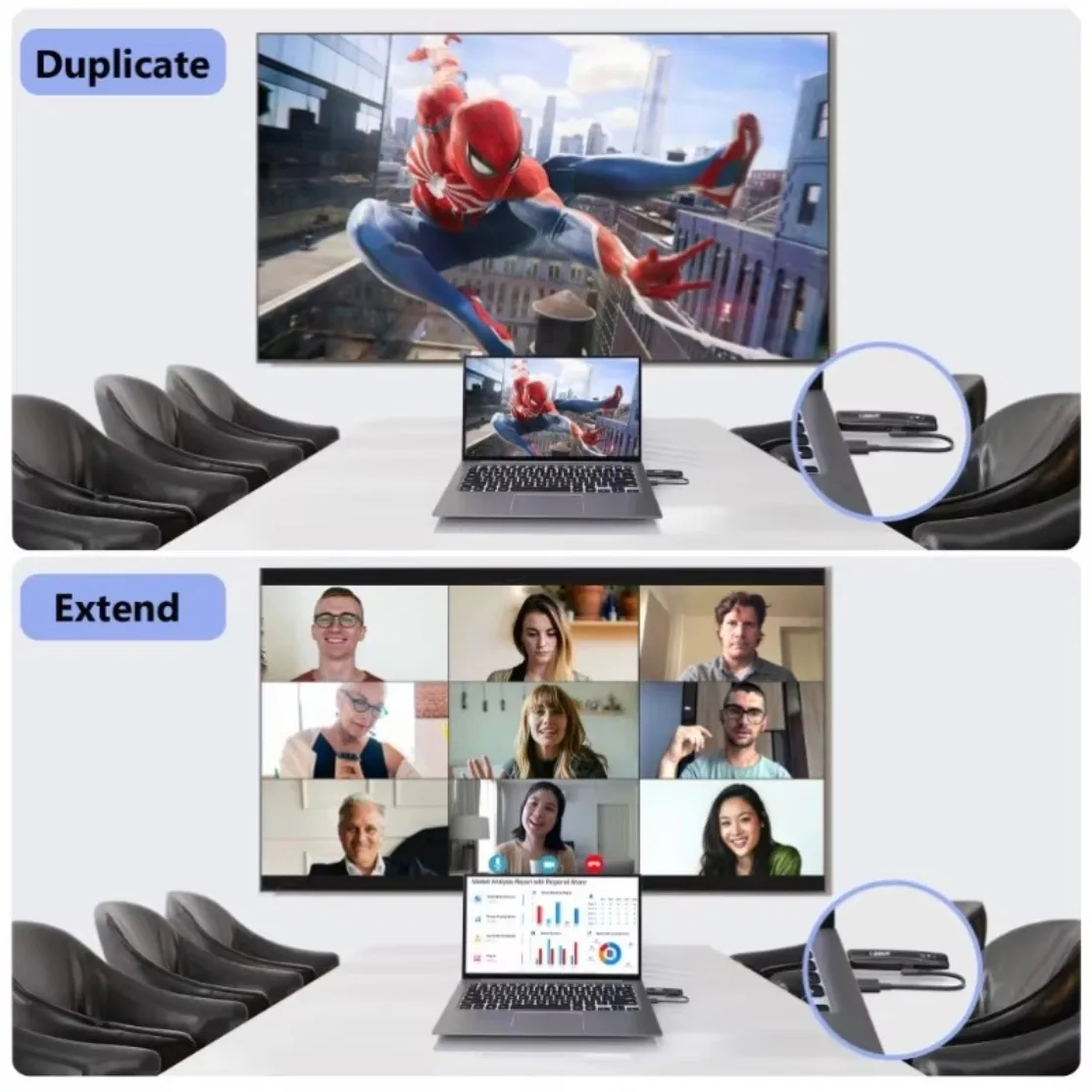
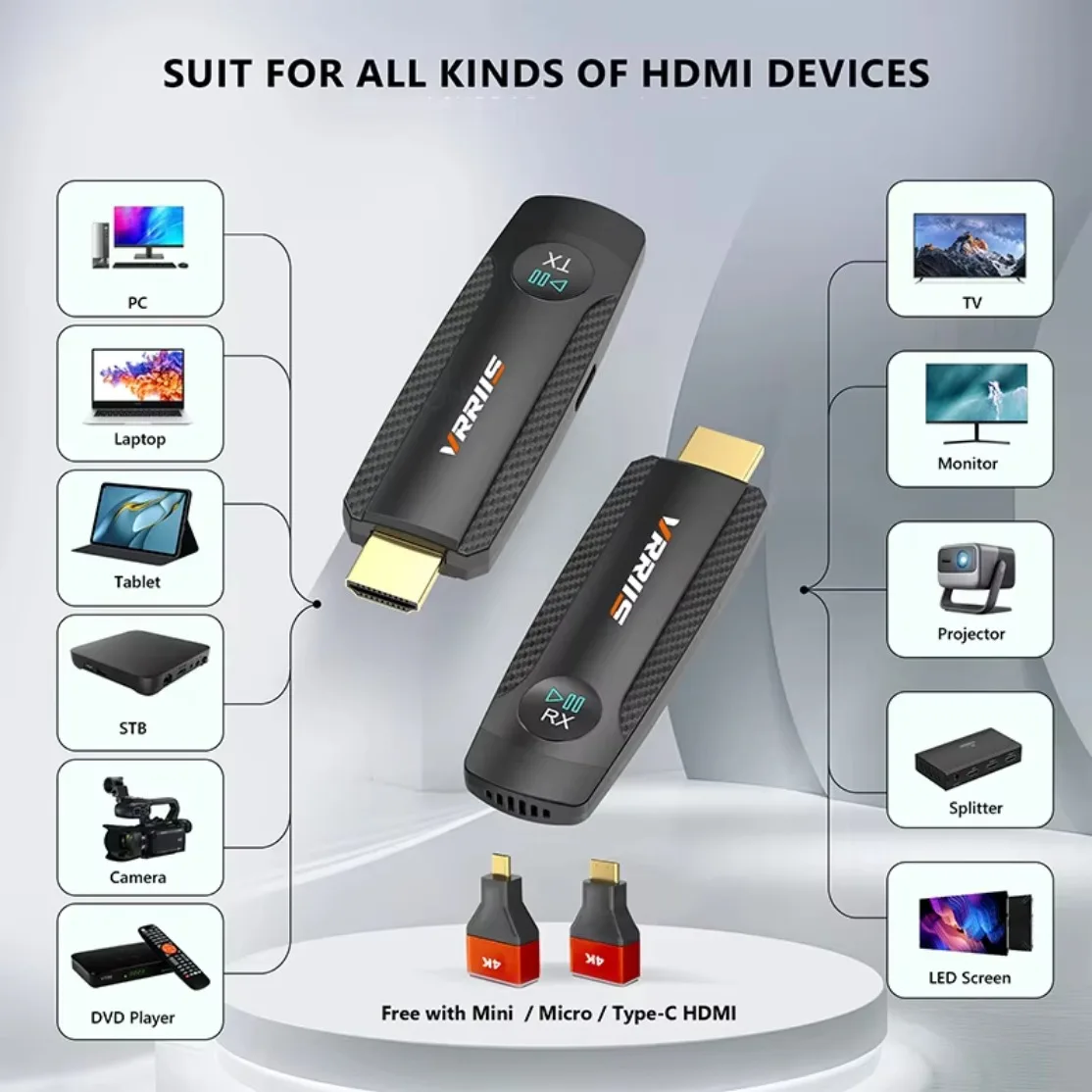
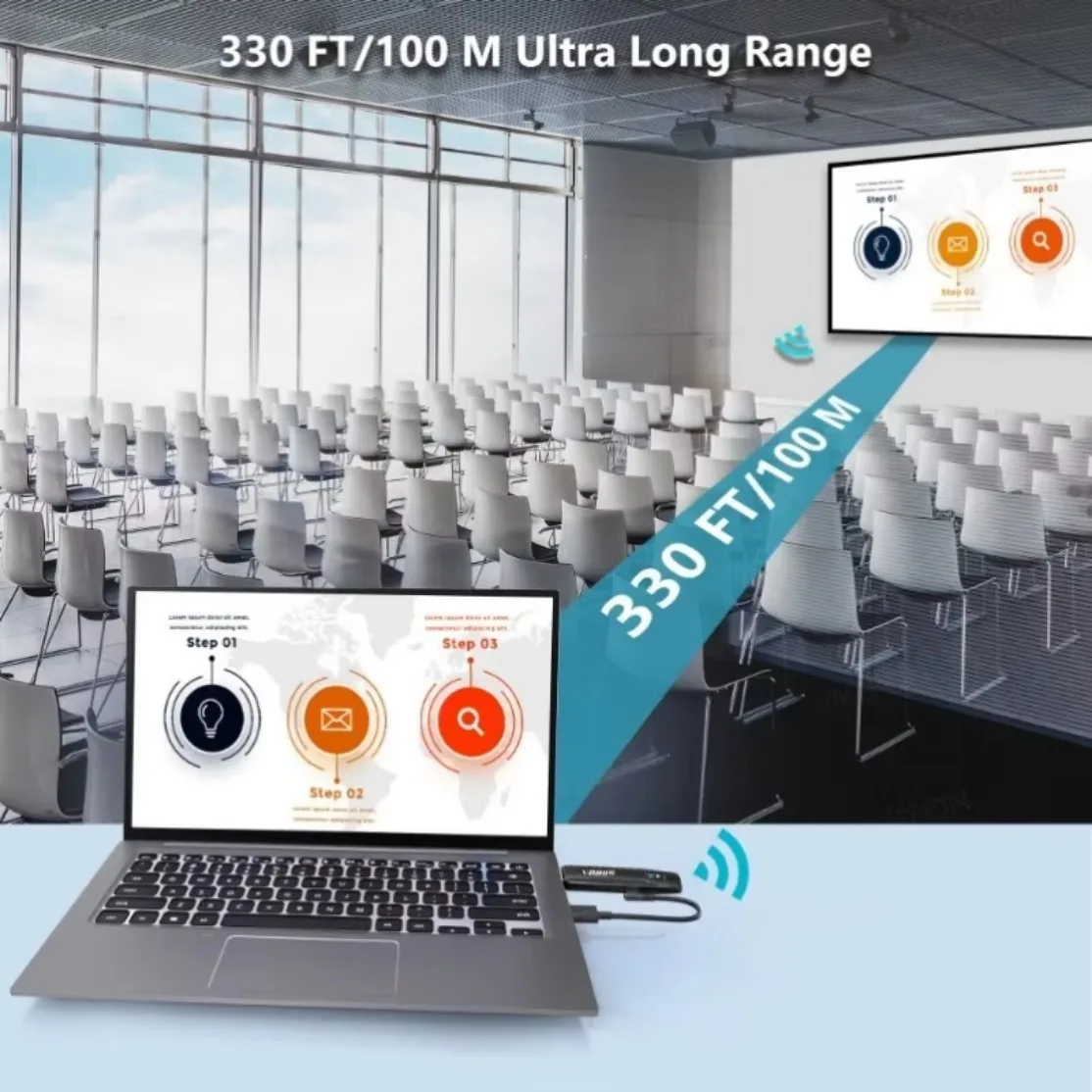
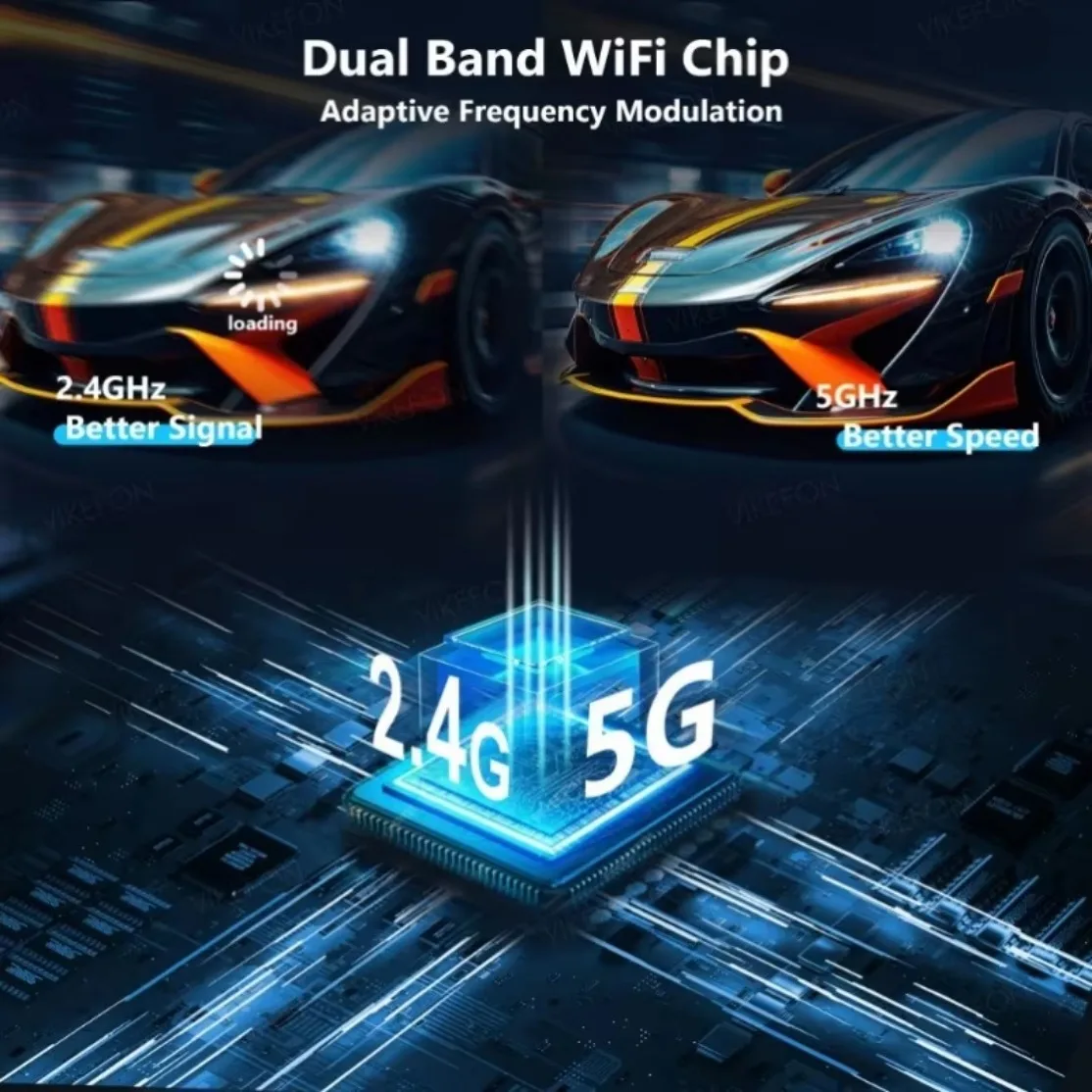
<div class="detailmodule_html"><div class="detail-desc-decorate-richtext"><div><span style="font-size:26px"><strong>Transmitter (TX)</strong></span><br/>Connect a computer or other device with HDMI video output function to easily mirror the display content of the screen, suitable for watching videos, playing games, and sharing screen content.<br/><br/><span style="font-size:26px"><strong>Receiver (RX)</strong></span><br/>Connect to an HDTV or screen to display the content you transmit from the transmitter.<br/><br/><span style="font-size:26px"><strong>How to cast screen - plug and play</strong></span><br/>1. Connect the receiver RX<br/>After supplying the receiver with an independent power source (5V/1A) through a Type C power cord, plug it into a TV or<br/>HDMI input port for display devices such as monitors.<br/>2. Connect the transmitter TX to the computer to start screen mirroring<br/>Connect the receiver to a computer or<br/>Other HDMI devices with video output function will start automatic screen mirroring when the indicator light flashes.<br/>3. Pause/Resume Screen Projection<br/>Click the function button on the transmitter.<br/><br/><strong><span style="font-size:26px">Operation guide</span></strong><br/>1. Automatic device pairing, plug and play<br/>2. The TX and RX must be powered on during use.<br/>3. TX Click button: Pause/Resume screen mirroring.<br/><br/><strong><span style="font-size:26px">Pairing Guide</span></strong><br/>be careful!<br/>This product has been paired before leaving the factory and is plug and play. If there is a situation where it cannot be connected, please follow the steps below to pair it<br/>1. Connect TX and RX through an HDMI converter<br/>2. Connect TX and RX to the power supply, and the indicator light will be on;<br/>3. Observe the status of the indicator lights: If the TX and RX indicator lights flash simultaneously, pairing is successful:<br/>4. After pairing is complete, disconnect the power and reconnect for use.<br/><br/><span style="font-size:26px"><strong>Common problem solutions</strong></span><br/>No signal: Check if the HDMI port is securely plugged in, restart the device, and if the above issues are not resolved, re pair.<br/>Screen delay: Ensure unobstructed communication between the transmitter and receiver to reduce interference sources (such as microwave ovens, WiFi routers)<br/>Short transmission distance: Avoid obstacles and confirm that the device is within a 100 meter effective range,<br/>Automatic pairing failed: power off first, then perform manual pairing, and adjust the output resolution to the display device in the signal source device<br/>Display resolution mismatch: support range 1080P@60Hz Or below.<br/><br/><span style="font-size:26px"><strong>Parameter</strong></span><br/>model: WLO94<br/>Support agreement: HDMI 1.3<br/>Transmission content: audio and video<br/>Transmission mode: 1TX to 1RX<br/>Delay: 0.05s<br/>HDMIIN: 1920x1080P@60Hz<br/>HDMI OUT: 1920x1080P@60Hz<br/>Channel: 5G12.4GHz<br/>Maximum distance: 100 meters<br/>Wireless standard: 802.11a/b/g/n/ac<br/>Applicable ambient temperature:- 20℃ ~50C</div><p style="text-align:left;margin:0px;margin-bottom:0px;margin-top:0px;margin-left:0px;margin-right:0px" align="left"></p></div></div><p><br/></p>
$99.05
$99.05
- Category : Consumer Electronics
- Brand : vikefon_3c_whimsy_store VIKEFON 3C Whimsy Store
Colors
Sizes
-
+

<div class="detailmodule_html"><div class="detail-desc-decorate-richtext"><div><span style="font-size:26px"><strong>Transmitter (TX)</strong></span><br/>Connect a computer or other device with HDMI video output function to easily mirror the display content of the screen, suitable for watching videos, playing games, and sharing screen content.<br/><br/><span style="font-size:26px"><strong>Receiver (RX)</strong></span><br/>Connect to an HDTV or screen to display the content you transmit from the transmitter.<br/><br/><span style="font-size:26px"><strong>How to cast screen - plug and play</strong></span><br/>1. Connect the receiver RX<br/>After supplying the receiver with an independent power source (5V/1A) through a Type C power cord, plug it into a TV or<br/>HDMI input port for display devices such as monitors.<br/>2. Connect the transmitter TX to the computer to start screen mirroring<br/>Connect the receiver to a computer or<br/>Other HDMI devices with video output function will start automatic screen mirroring when the indicator light flashes.<br/>3. Pause/Resume Screen Projection<br/>Click the function button on the transmitter.<br/><br/><strong><span style="font-size:26px">Operation guide</span></strong><br/>1. Automatic device pairing, plug and play<br/>2. The TX and RX must be powered on during use.<br/>3. TX Click button: Pause/Resume screen mirroring.<br/><br/><strong><span style="font-size:26px">Pairing Guide</span></strong><br/>be careful!<br/>This product has been paired before leaving the factory and is plug and play. If there is a situation where it cannot be connected, please follow the steps below to pair it<br/>1. Connect TX and RX through an HDMI converter<br/>2. Connect TX and RX to the power supply, and the indicator light will be on;<br/>3. Observe the status of the indicator lights: If the TX and RX indicator lights flash simultaneously, pairing is successful:<br/>4. After pairing is complete, disconnect the power and reconnect for use.<br/><br/><span style="font-size:26px"><strong>Common problem solutions</strong></span><br/>No signal: Check if the HDMI port is securely plugged in, restart the device, and if the above issues are not resolved, re pair.<br/>Screen delay: Ensure unobstructed communication between the transmitter and receiver to reduce interference sources (such as microwave ovens, WiFi routers)<br/>Short transmission distance: Avoid obstacles and confirm that the device is within a 100 meter effective range,<br/>Automatic pairing failed: power off first, then perform manual pairing, and adjust the output resolution to the display device in the signal source device<br/>Display resolution mismatch: support range 1080P@60Hz Or below.<br/><br/><span style="font-size:26px"><strong>Parameter</strong></span><br/>model: WLO94<br/>Support agreement: HDMI 1.3<br/>Transmission content: audio and video<br/>Transmission mode: 1TX to 1RX<br/>Delay: 0.05s<br/>HDMIIN: 1920x1080P@60Hz<br/>HDMI OUT: 1920x1080P@60Hz<br/>Channel: 5G12.4GHz<br/>Maximum distance: 100 meters<br/>Wireless standard: 802.11a/b/g/n/ac<br/>Applicable ambient temperature:- 20℃ ~50C</div><p style="text-align:left;margin:0px;margin-bottom:0px;margin-top:0px;margin-left:0px;margin-right:0px" align="left"></p></div></div><p><br/></p>
Related Product
Browse The Collection of Top Products.