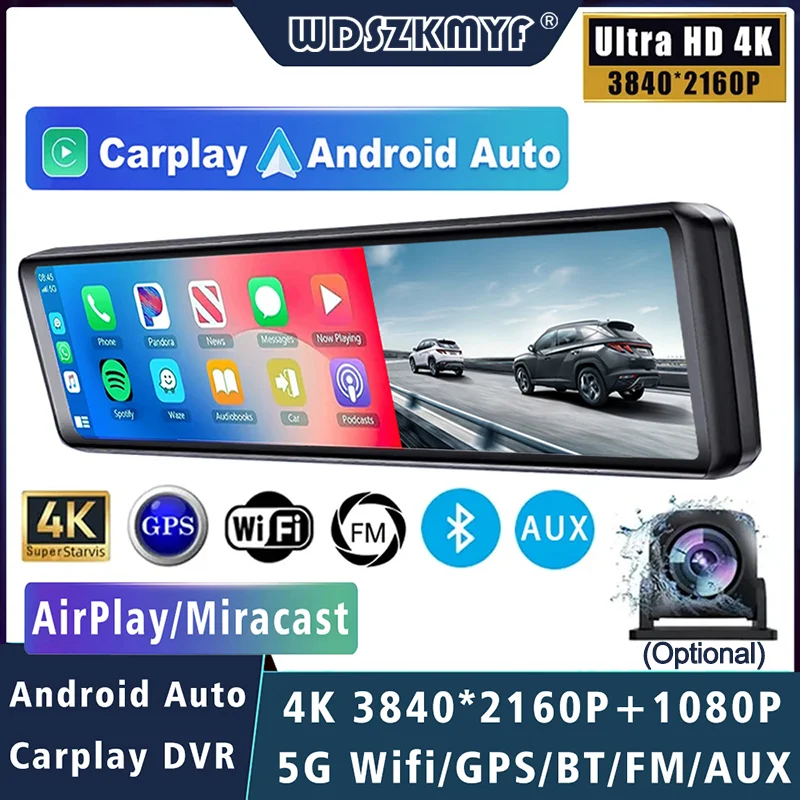
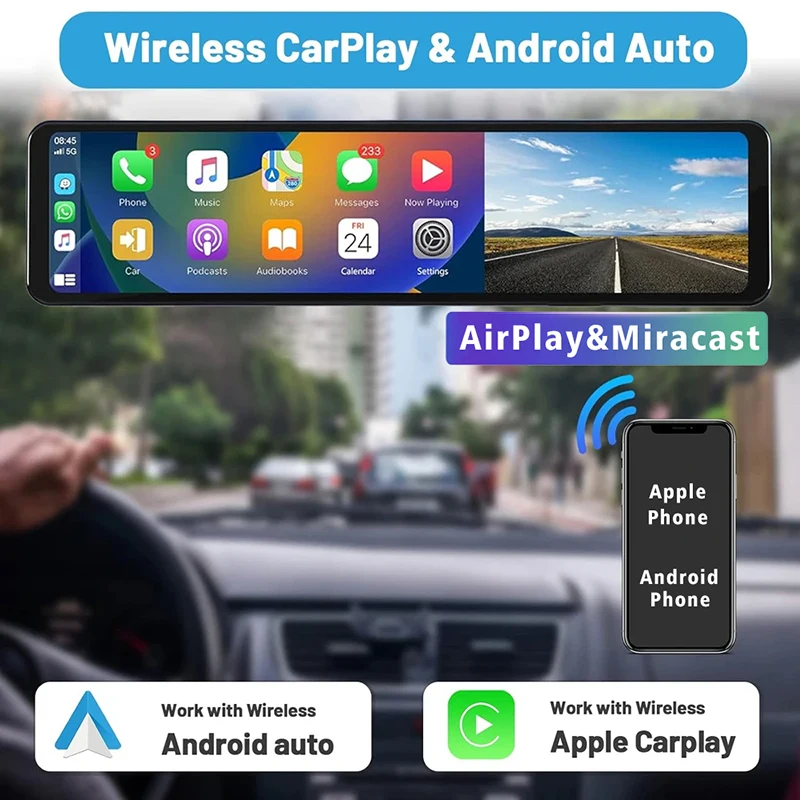
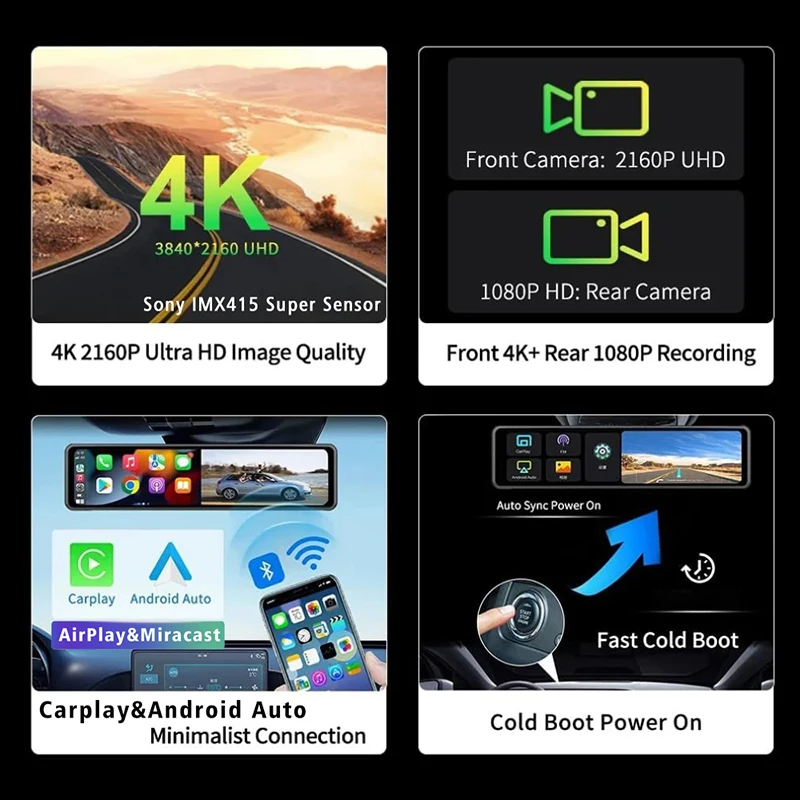
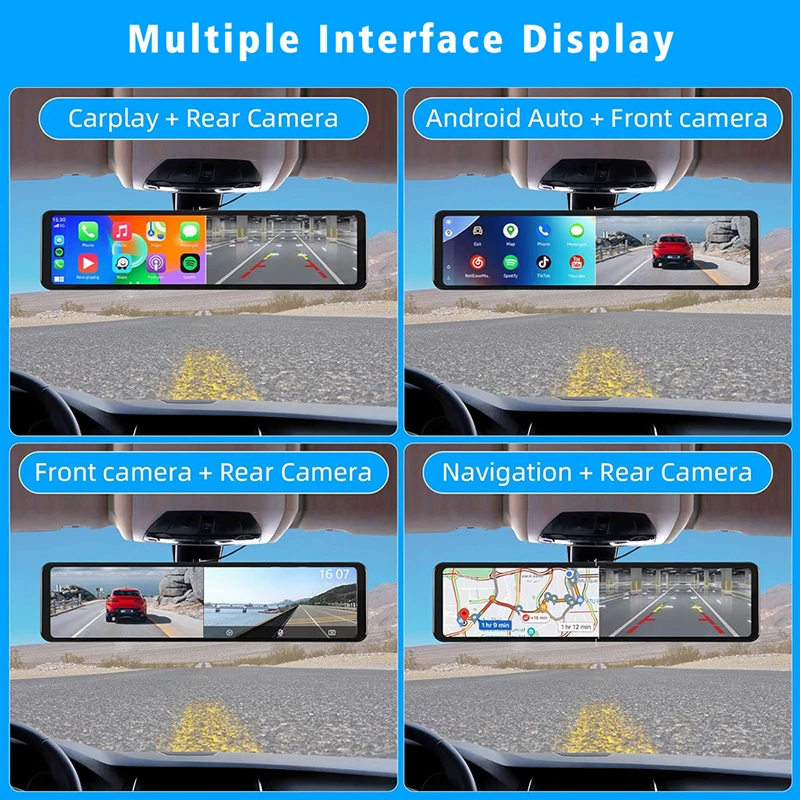
11.26" 4K 2160P Car Dvr Carplay Android Auto Dash Cam GPS WIFI BT FM Stream Rear View Mirror Dashcam Dvrs Camera Drive Recorder
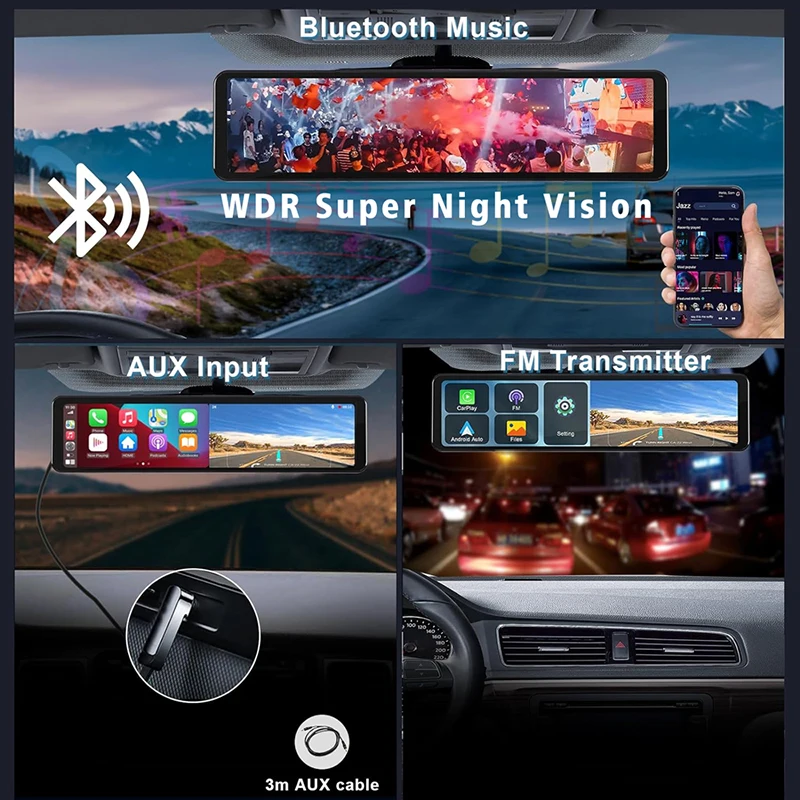
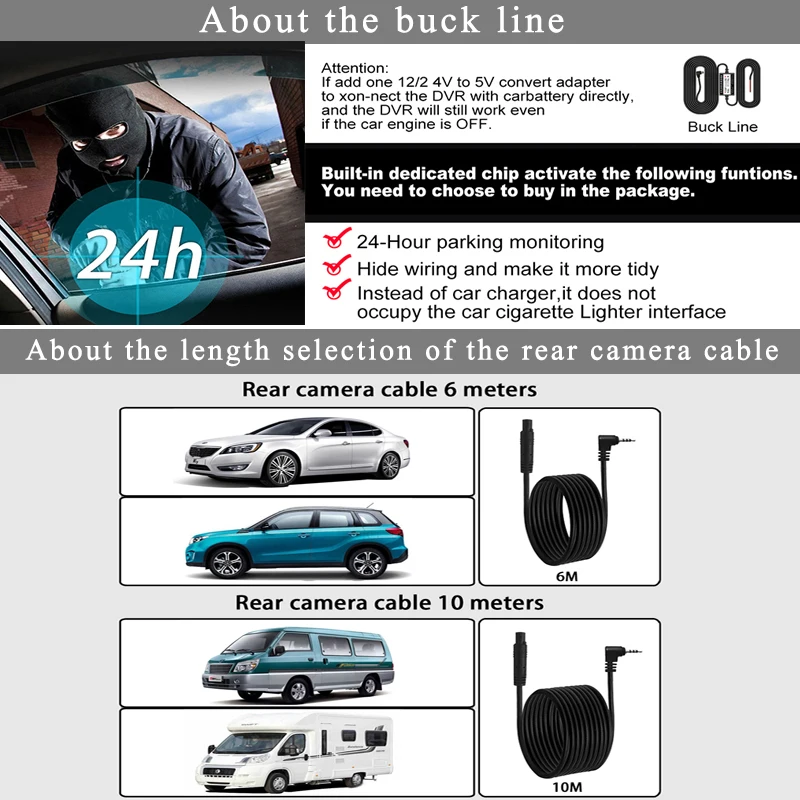
<p><br/></p><p><br/></p><p><br/></p><div class="detailmodule_image"></div><p><br/></p><p><br/></p><p><br/></p><p><br/></p><br/><p><div class="detailmodule_media"><div class="video-container-1100228673804"><div class="detail-video" id="1100228673804" data-previewurl="https://ae01.alicdn.com/kf/S13feb97d4dfb473b977d43c7ebb5ac77P.jpg"></div></div></div></p><br/><p><br/></p><p><br/></p><p><br/></p><p><br/></p><div class="detailmodule_text-image"><p style="font-size:24px;font-weight:bold;color:rgb(254, 1, 1)">Please note:This product is divided into two models: X42: 10-inch screen, front 1080P pixel camera, rear 1080P camera (without Carplay function); X271: 12-inch screen, front 4K pixel camera, rear 1080P camera (with Carplay, split screen function). Please purchase with caution! Customers who purchase this product will receive a pair of rearview assist mirrors.</p><div></div></div><div class="detailmodule_text"><p style="font-size:24px;font-weight:bold">About Formatting The Memory Card:</p><p style="font-size:24px;font-weight:normal">When installing a memory card for the first time, be sure to format the memory card on the DVR. After formatting, the DVR can correctly match the memory card.<br/><br/>Formatting Steps: After installing the memory card, please enter the DVR menu, find the format option, and click to format the memory card.(Important: Formatting the memory card on the computer is an incorrect operation. Please be sure to format the memory card on the DVR's menu option.)</p></div><div class="detailmodule_text"><p style="font-size:24px;font-weight:bold">Features:</p><p style="font-size:24px;font-weight:normal">1. With 11.26" IPS Touch Screen<br/><br/>2. Fast Cold Boot<br/><br/>3. With AUX Output Function<br/>AUX function supports audio output.After connection,you can listen to music of dvr with the car stereo<br/><br/>4. Front Camera 4K + Rearview Camera 1080P<br/>Achieve true 3840*2160P 4K UHD resolution, see more clearly, see farther</p></div><div class="detailmodule_text"><p style="font-size:24px;font-weight:bold">Support Wireless CarPlay & Android Auto And Wired Android Auto</p><p style="font-size:24px;font-weight:normal">(1)Wireless CarPlay & Android Auto:<br/>You can use wireless Carplay & Android Auto function by connecting Bluetooth or WiFi<br/>(2)Wired Android Auto:<br/>There are type-c interface(next to AUX interface),just connect it with your mobile phone via type-c line.It can finish wired Android Auto projection,solve the pain point that the old Android phone doesn't support the wireless screen projection problem.</p></div><div class="detailmodule_image"></div><div class="detailmodule_text"><p style="font-size:24px;font-weight:bold;text-align:left;display:block;width:100%" align="left">2 Channels 4K Front and 1080P Rear and 1080P Dash cam</p></div><div class="detailmodule_text"><p style="font-size:24px;font-weight:normal;text-align:left;display:block;width:100%" align="left">ONLY Front Camera: 4K;</p></div><div class="detailmodule_text"><p style="font-size:24px;font-weight:normal;text-align:left;display:block;width:100%" align="left">Front + Rear Camera:2K+1080P</p></div><div class="detailmodule_image"></div><div class="detailmodule_text"><p style="font-size:24px;font-weight:bold;text-align:left;display:block;width:100%" align="left">Support GPS Navigation</p></div><div class="detailmodule_text"><p style="font-size:28px;font-weight:normal;text-align:left;display:block;width:100%" align="left">(In CarPlay Or Android Auto Mode)The DVR itself doesn't have GPS navigation,You need to use CarPlay orAndroid Auto to do the navigate.Please install your favorite map in your mobile phone at first.</p></div><div class="detailmodule_image"></div><div class="detailmodule_text"><p style="font-size:24px;font-weight:bold;text-align:left;display:block;width:100%" align="left">Super Night Vision</p></div><div class="detailmodule_text"><p style="font-size:24px;font-weight:normal;text-align:left;display:block;width:100%" align="left">The camera chip has a built-in night vision processing function, which allows you to record video even in low light environment.</p></div><div class="detailmodule_image"></div><div class="detailmodule_text-image"><p style="font-size:24px;font-weight:bold">With FM Transmitter:</p><p style="font-size:24px;font-weight:normal">Built -in FM transmit(just pair it once,then connect automatically, can transfer audio to original car,retain good sound quality</p><div></div></div><div class="detailmodule_text-image"><p style="font-size:24px;font-weight:bold">With Siri Voice Assistant Function(only for Carplay):</p><p style="font-size:24px;font-weight:normal">Support Siri voice navigation,Siri voice music etc.Help you free hands, and get a better driving experience</p><div></div></div><div class="detailmodule_text"><p style="font-size:24px;font-weight:bold;text-align:left;display:block;width:100%" align="left">WIFI Phone Control:</p></div><div class="detailmodule_text"><p style="font-size:24px;font-weight:normal;text-align:left;display:block;width:100%" align="left">This rear view mirror camera has built-in WiFi that supports you to play real-time video and replay recorded video. By using Phone APP, you can also download and share videos to social media or your families. Available for iOS and Android devices.</p></div><div class="detailmodule_image"></div><div class="detailmodule_text"><p style="font-size:24px;font-weight:bold;text-align:left;display:block;width:100%" align="left">Support 1:1 split screen</p></div><div class="detailmodule_text"><p style="font-size:24px;font-weight:normal;text-align:left;display:block;width:100%" align="left">Part of the UI display (the page will change according to the upgraded version, the function remains unchanged)</p></div><div class="detailmodule_image"></div><div class="detailmodule_text"><p style="font-size:24px;font-weight:bold">Real Time Reverse View:</p><p style="font-size:24px;font-weight:normal">Support 1080P full screen reverse image,When reversing, the system will automatically turn on the high-definition reversing camera at the rear of the car and clearly display the state of the rear of the car on the reverse IPS screen, so that you can accurately grasp the road conditions at the rear. It also performs well in rainy and dusty weather.</p></div><div class="detailmodule_image"></div><div class="detailmodule_text"><p style="font-size:24px;font-weight:bold;text-align:left;display:block;width:100%" align="left">Loop Recording&G-Sensor</p></div><div class="detailmodule_text"><p style="font-size:24px;font-weight:normal;text-align:left;display:block;width:100%" align="left">In the event of an impact or collision, the built-in G-sensor would lock and save the video, and the video would not be overwritten by loop recording..Every detail would be automatically record and not miss one second, unlocked data would be overwritten automatically when TF card is run out of storage.</p></div><div class="detailmodule_image"></div><div class="detailmodule_image"></div><div class="detailmodule_text-image"><p style="font-size:24px;font-weight:bold;text-align:left;color:rgb(255, 0, 0);display:block;width:100%" align="left">Users who want to utilize the 24-hour parking monitoring feature will need to purchase a hardware kit on their own.</p></div><div class="detailmodule_image"></div><div class="detailmodule_text-image"><p style="font-size:24px;font-weight:bold;text-align:left;color:rgb(0, 0, 0);display:block;width:100%" align="left">About 24-Hour Parking Monitoring:</p><p style="font-size:24px;font-weight:normal;text-align:left;display:block;width:100%" align="left">If you need the 24 hour parking monitoring function, you can order the corresponding Buck Line accessories to replace the car charger.Through Buck Line, the DVR power can be obtained directly from the car battery or car ACC, so that the DVR can maintain normal recording work even when the car is turned off.(Since different car models have different battery interfaces or ACC interfaces, it is not recommended to install it by yourself. It is recommended to find a professional to install the Buck Line.)</p></div><div class="detailmodule_text-image"><p style="font-size:24px;font-weight:bold;text-align:left;color:rgb(0, 0, 0);display:block;width:100%" align="left">About WIFI Connection:</p><p style="font-size:24px;font-weight:normal;text-align:left;display:block;width:100%" align="left">Before connecting to the DVR on the phone, it is necessary to install the WIFI connection app "Viidure" in advance.You can search for "Viidure" installation in the Apple App Store or Google App Market.<br/>Steps:<br/>(1) Enter the DVR menu and enter the WIFl setting menu,nable WiFi function;<br/><br/>(2)In the wifi menu of the DVR, check to obtain the wifi SSID name and password;<br/><br/>(3)Open the "Viidure" APP on your phone, enter the configuration mode, turn on the wifi function of the phone, follow the prompts to find the SSID wifi signal of the DVR and enter the password to connect;<br/>(4)After successful configuration, you can connect and operate the DVR through the "Viidure" APP.</p></div><p><br/></p><p><br/></p><p><br/></p><p><br/></p><p><br/></p><br/>
$148.7
$75.35
- Category : Automobiles, Parts & Accessories
- Brand : global_car_accessories_factory_store Global Car Accessories Factory Store
Colors
Sizes
-
+

<p><br/></p><p><br/></p><p><br/></p><div class="detailmodule_image"></div><p><br/></p><p><br/></p><p><br/></p><p><br/></p><br/><p><div class="detailmodule_media"><div class="video-container-1100228673804"><div class="detail-video" id="1100228673804" data-previewurl="https://ae01.alicdn.com/kf/S13feb97d4dfb473b977d43c7ebb5ac77P.jpg"></div></div></div></p><br/><p><br/></p><p><br/></p><p><br/></p><p><br/></p><div class="detailmodule_text-image"><p style="font-size:24px;font-weight:bold;color:rgb(254, 1, 1)">Please note:This product is divided into two models: X42: 10-inch screen, front 1080P pixel camera, rear 1080P camera (without Carplay function); X271: 12-inch screen, front 4K pixel camera, rear 1080P camera (with Carplay, split screen function). Please purchase with caution! Customers who purchase this product will receive a pair of rearview assist mirrors.</p><div></div></div><div class="detailmodule_text"><p style="font-size:24px;font-weight:bold">About Formatting The Memory Card:</p><p style="font-size:24px;font-weight:normal">When installing a memory card for the first time, be sure to format the memory card on the DVR. After formatting, the DVR can correctly match the memory card.<br/><br/>Formatting Steps: After installing the memory card, please enter the DVR menu, find the format option, and click to format the memory card.(Important: Formatting the memory card on the computer is an incorrect operation. Please be sure to format the memory card on the DVR's menu option.)</p></div><div class="detailmodule_text"><p style="font-size:24px;font-weight:bold">Features:</p><p style="font-size:24px;font-weight:normal">1. With 11.26" IPS Touch Screen<br/><br/>2. Fast Cold Boot<br/><br/>3. With AUX Output Function<br/>AUX function supports audio output.After connection,you can listen to music of dvr with the car stereo<br/><br/>4. Front Camera 4K + Rearview Camera 1080P<br/>Achieve true 3840*2160P 4K UHD resolution, see more clearly, see farther</p></div><div class="detailmodule_text"><p style="font-size:24px;font-weight:bold">Support Wireless CarPlay & Android Auto And Wired Android Auto</p><p style="font-size:24px;font-weight:normal">(1)Wireless CarPlay & Android Auto:<br/>You can use wireless Carplay & Android Auto function by connecting Bluetooth or WiFi<br/>(2)Wired Android Auto:<br/>There are type-c interface(next to AUX interface),just connect it with your mobile phone via type-c line.It can finish wired Android Auto projection,solve the pain point that the old Android phone doesn't support the wireless screen projection problem.</p></div><div class="detailmodule_image"></div><div class="detailmodule_text"><p style="font-size:24px;font-weight:bold;text-align:left;display:block;width:100%" align="left">2 Channels 4K Front and 1080P Rear and 1080P Dash cam</p></div><div class="detailmodule_text"><p style="font-size:24px;font-weight:normal;text-align:left;display:block;width:100%" align="left">ONLY Front Camera: 4K;</p></div><div class="detailmodule_text"><p style="font-size:24px;font-weight:normal;text-align:left;display:block;width:100%" align="left">Front + Rear Camera:2K+1080P</p></div><div class="detailmodule_image"></div><div class="detailmodule_text"><p style="font-size:24px;font-weight:bold;text-align:left;display:block;width:100%" align="left">Support GPS Navigation</p></div><div class="detailmodule_text"><p style="font-size:28px;font-weight:normal;text-align:left;display:block;width:100%" align="left">(In CarPlay Or Android Auto Mode)The DVR itself doesn't have GPS navigation,You need to use CarPlay orAndroid Auto to do the navigate.Please install your favorite map in your mobile phone at first.</p></div><div class="detailmodule_image"></div><div class="detailmodule_text"><p style="font-size:24px;font-weight:bold;text-align:left;display:block;width:100%" align="left">Super Night Vision</p></div><div class="detailmodule_text"><p style="font-size:24px;font-weight:normal;text-align:left;display:block;width:100%" align="left">The camera chip has a built-in night vision processing function, which allows you to record video even in low light environment.</p></div><div class="detailmodule_image"></div><div class="detailmodule_text-image"><p style="font-size:24px;font-weight:bold">With FM Transmitter:</p><p style="font-size:24px;font-weight:normal">Built -in FM transmit(just pair it once,then connect automatically, can transfer audio to original car,retain good sound quality</p><div></div></div><div class="detailmodule_text-image"><p style="font-size:24px;font-weight:bold">With Siri Voice Assistant Function(only for Carplay):</p><p style="font-size:24px;font-weight:normal">Support Siri voice navigation,Siri voice music etc.Help you free hands, and get a better driving experience</p><div></div></div><div class="detailmodule_text"><p style="font-size:24px;font-weight:bold;text-align:left;display:block;width:100%" align="left">WIFI Phone Control:</p></div><div class="detailmodule_text"><p style="font-size:24px;font-weight:normal;text-align:left;display:block;width:100%" align="left">This rear view mirror camera has built-in WiFi that supports you to play real-time video and replay recorded video. By using Phone APP, you can also download and share videos to social media or your families. Available for iOS and Android devices.</p></div><div class="detailmodule_image"></div><div class="detailmodule_text"><p style="font-size:24px;font-weight:bold;text-align:left;display:block;width:100%" align="left">Support 1:1 split screen</p></div><div class="detailmodule_text"><p style="font-size:24px;font-weight:normal;text-align:left;display:block;width:100%" align="left">Part of the UI display (the page will change according to the upgraded version, the function remains unchanged)</p></div><div class="detailmodule_image"></div><div class="detailmodule_text"><p style="font-size:24px;font-weight:bold">Real Time Reverse View:</p><p style="font-size:24px;font-weight:normal">Support 1080P full screen reverse image,When reversing, the system will automatically turn on the high-definition reversing camera at the rear of the car and clearly display the state of the rear of the car on the reverse IPS screen, so that you can accurately grasp the road conditions at the rear. It also performs well in rainy and dusty weather.</p></div><div class="detailmodule_image"></div><div class="detailmodule_text"><p style="font-size:24px;font-weight:bold;text-align:left;display:block;width:100%" align="left">Loop Recording&G-Sensor</p></div><div class="detailmodule_text"><p style="font-size:24px;font-weight:normal;text-align:left;display:block;width:100%" align="left">In the event of an impact or collision, the built-in G-sensor would lock and save the video, and the video would not be overwritten by loop recording..Every detail would be automatically record and not miss one second, unlocked data would be overwritten automatically when TF card is run out of storage.</p></div><div class="detailmodule_image"></div><div class="detailmodule_image"></div><div class="detailmodule_text-image"><p style="font-size:24px;font-weight:bold;text-align:left;color:rgb(255, 0, 0);display:block;width:100%" align="left">Users who want to utilize the 24-hour parking monitoring feature will need to purchase a hardware kit on their own.</p></div><div class="detailmodule_image"></div><div class="detailmodule_text-image"><p style="font-size:24px;font-weight:bold;text-align:left;color:rgb(0, 0, 0);display:block;width:100%" align="left">About 24-Hour Parking Monitoring:</p><p style="font-size:24px;font-weight:normal;text-align:left;display:block;width:100%" align="left">If you need the 24 hour parking monitoring function, you can order the corresponding Buck Line accessories to replace the car charger.Through Buck Line, the DVR power can be obtained directly from the car battery or car ACC, so that the DVR can maintain normal recording work even when the car is turned off.(Since different car models have different battery interfaces or ACC interfaces, it is not recommended to install it by yourself. It is recommended to find a professional to install the Buck Line.)</p></div><div class="detailmodule_text-image"><p style="font-size:24px;font-weight:bold;text-align:left;color:rgb(0, 0, 0);display:block;width:100%" align="left">About WIFI Connection:</p><p style="font-size:24px;font-weight:normal;text-align:left;display:block;width:100%" align="left">Before connecting to the DVR on the phone, it is necessary to install the WIFI connection app "Viidure" in advance.You can search for "Viidure" installation in the Apple App Store or Google App Market.<br/>Steps:<br/>(1) Enter the DVR menu and enter the WIFl setting menu,nable WiFi function;<br/><br/>(2)In the wifi menu of the DVR, check to obtain the wifi SSID name and password;<br/><br/>(3)Open the "Viidure" APP on your phone, enter the configuration mode, turn on the wifi function of the phone, follow the prompts to find the SSID wifi signal of the DVR and enter the password to connect;<br/>(4)After successful configuration, you can connect and operate the DVR through the "Viidure" APP.</p></div><p><br/></p><p><br/></p><p><br/></p><p><br/></p><p><br/></p><br/>
Related Product
Browse The Collection of Top Products.