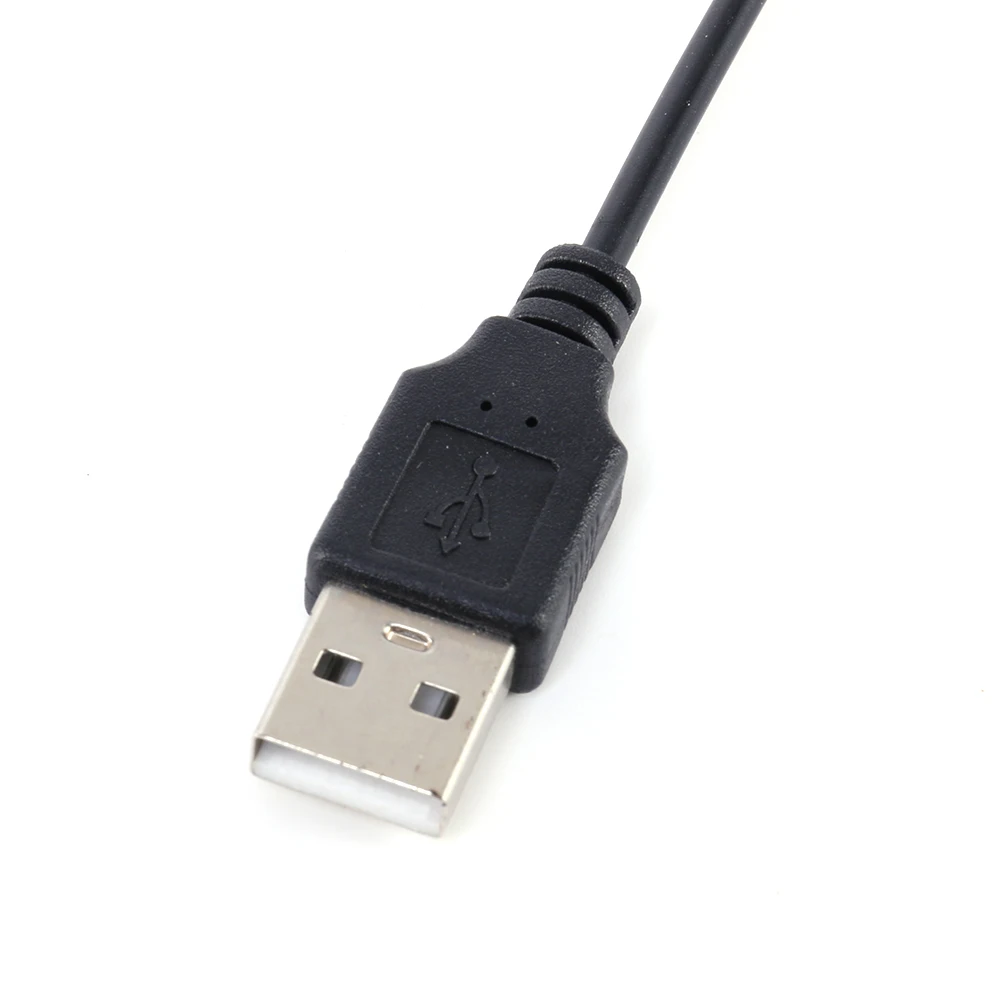
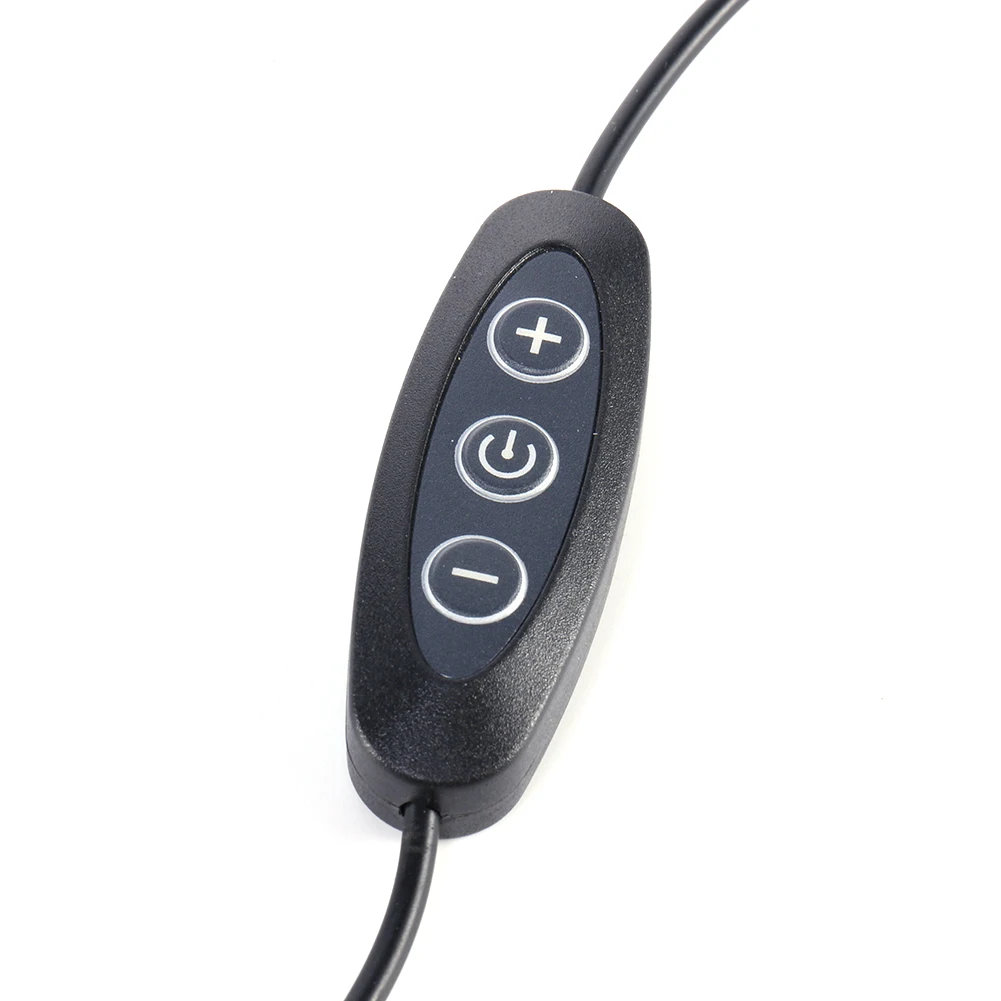
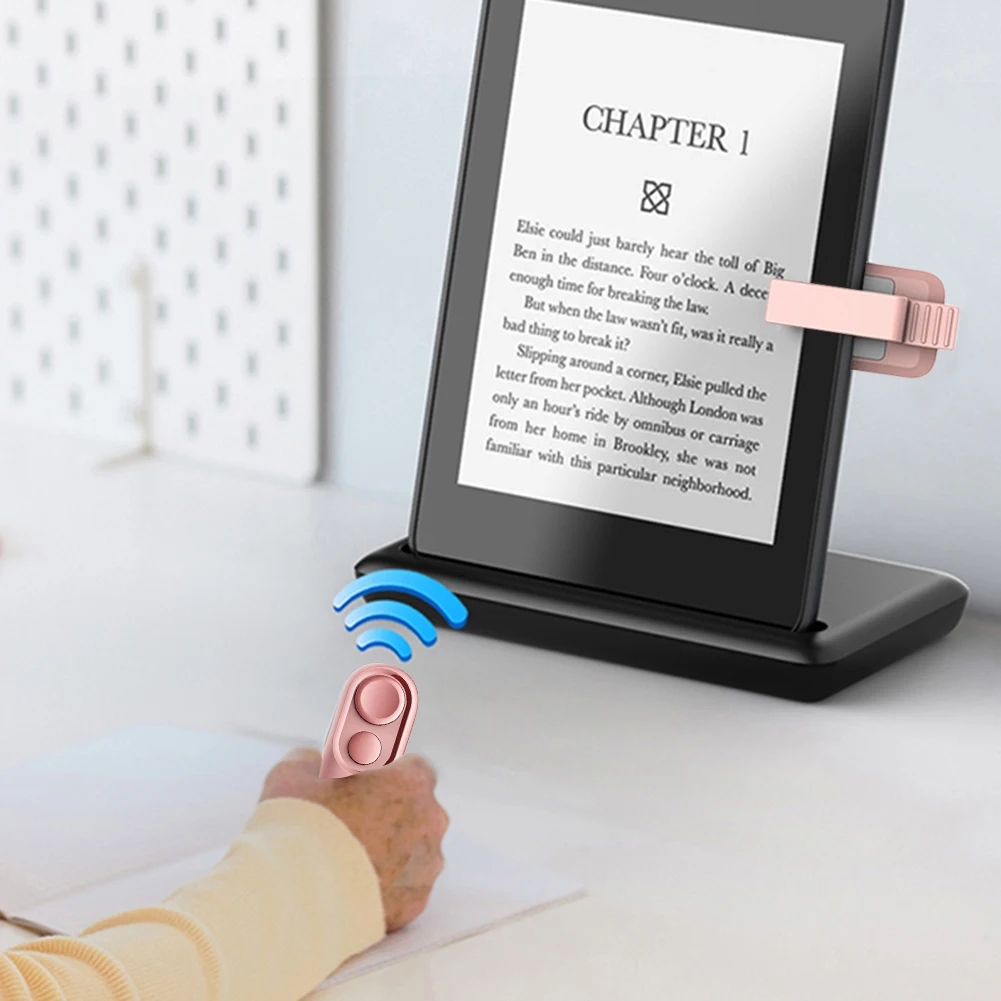
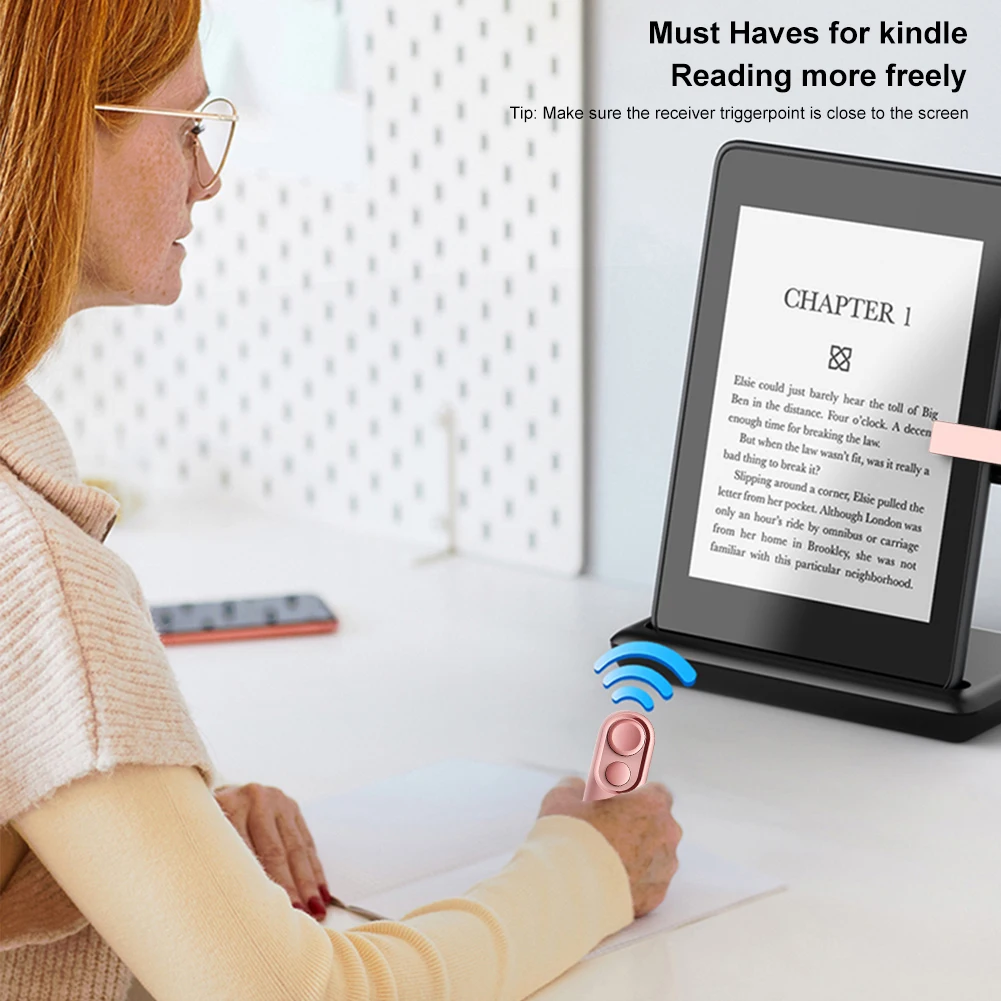
2.4G BT 5.2 Remote Control Wireless Gyroscope Air Mouse 7 Color Backlight USB Receiver Mini Keyboard for Android Smart TV Box PC
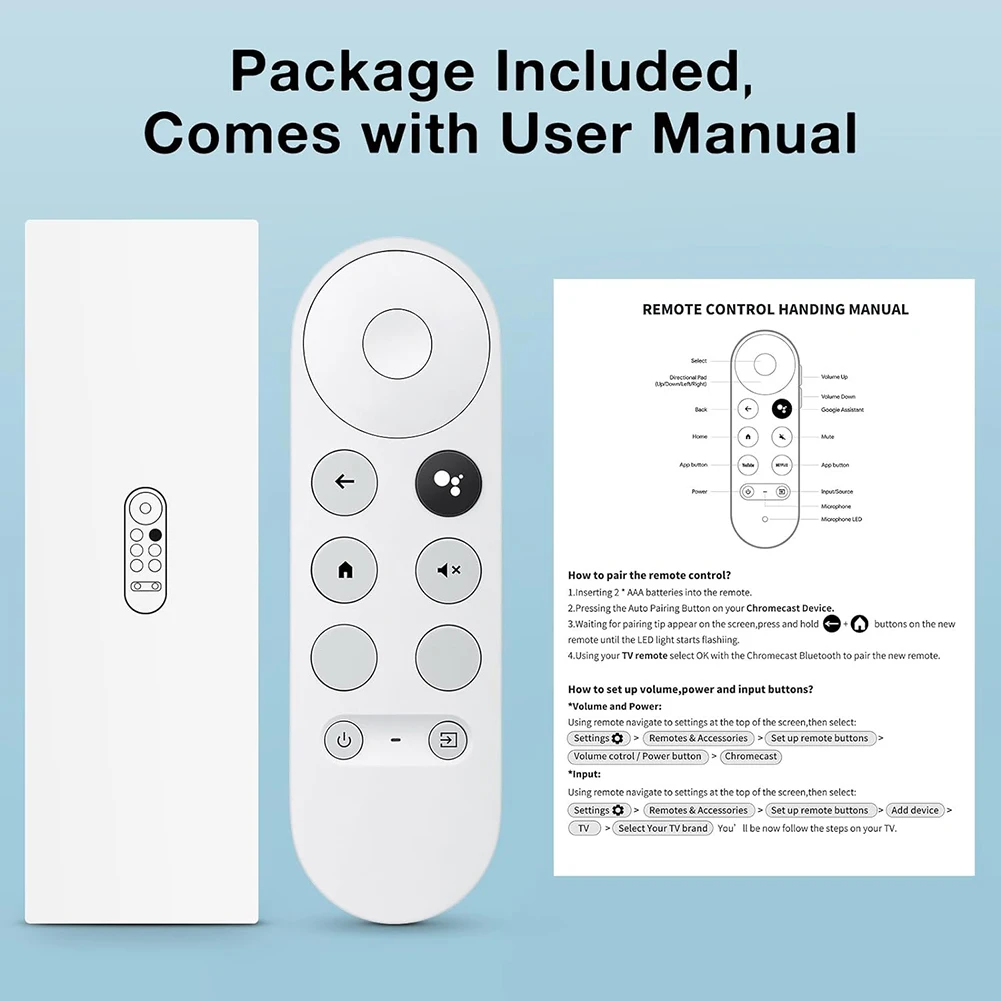
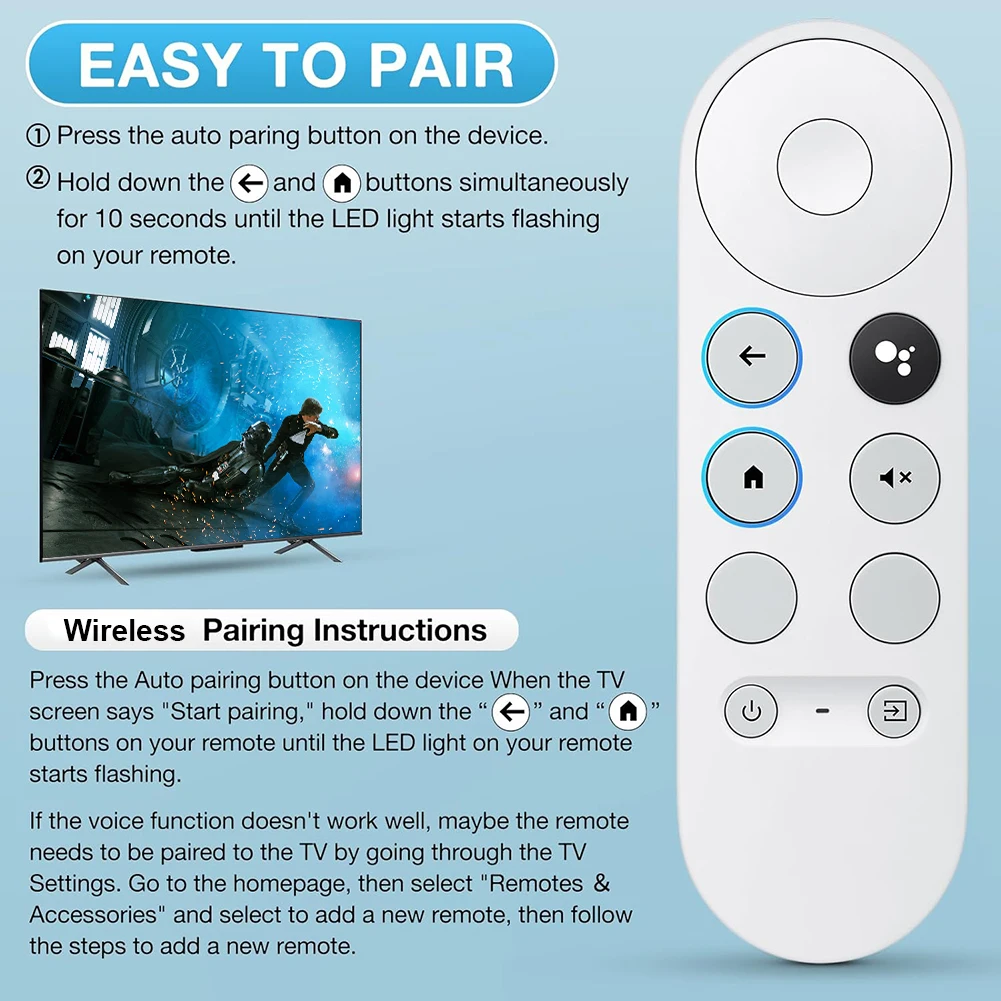
<div class="detailmodule_html"><div class="detail-desc-decorate-richtext"><h2><strong><span style="font-size:18px">2 . 4G MODE</span></strong></h2><h3><span style="font-size:18px">For initial use , plug a USB receiver into the USB port of device and wait for 20-60 seconds to install driver of USB receiver . Move the mouse the mouse cursor can move on the screen means that pairing is successful</span></h3><h3><span style="font-size:18px">if it is unsuccessful , press and hold [ OK and [ BACK ] buttons , LED light begin to flash . Pairing is successful when LED light stop flashing</span></h3><h2><strong><span style="font-size:18px">BT 5.0 MODE</span></strong></h2><h3><span style="font-size:18px">1 . Before using this device , first you must turn on the BT function of the lain device</span></h3><h3><span style="font-size:18px">2 . Then long press " OK + Return keys , when the LED turns to flash quickly, the product enters the pre pairing</span></h3><h3><span style="font-size:18px">3 , Click add search new devices on the main device to find this air remotes name ( Example : BT-REMOTE ) . Click the name can to connecting</span></h3><h3><span style="font-size:18px">4 . After the product is successfully connected , the direction of the mouse pointer can be controlled by waving in the air</span></h3><h3><span style="font-size:18px">5 .If the connection is not successful , please perform the operation steps of item 2-4 again</span></h3><h3><span style="font-size:18px">6 . Reconnect efficiency description : The normal reconnect time of this product is 3-5 seconds after it is normally paired with the main equipment</span></h3><h3><span style="font-size:18px">7 . This product can only remember the pairing information of one main device , when the product is connected to a new device , the connection of historical devices is not supported after</span></h3><h3><span style="font-size:18px">8 . in this case . you need to delete the historical connection information of this peripheral can be successfully matched for new search</span></h3><h2><strong><span style="font-size:18px">CPIADJUSTMENT</span></strong></h2><h3><span style="font-size:18px">CPI ( Count Per Inch ) . Speed of the Mouse Cursor</span></h3><h3><span style="font-size:18px">Adjustment ( 3 Levels ) , 1 , 2 , 3 Level . The higher the level , the faster the speed . The default speed is set at level 2</span></h3><h3><strong><span style="font-size:18px">1 . Speed Increase</span></strong></h3><h3><span style="font-size:18px">Press OK button + Volume + ] button for about 3seconds , the work indicator flashes quickly and then goes off , release the button , CPI on the basis of the original increase 1 level</span></h3><h3><strong><span style="font-size:18px">2 . Speed Decrease</span></strong></h3><h3><span style="font-size:18px">Press [ OK ] + Volume - for about 3 seconds , the work indicator flashes quickly and then goes off ,release the button , and CPI is reduced by 1 level on the basis of the original</span></h3><div><br/></div><p></p></div></div><p><br/></p>
$31.64
$15.935
- Category : Consumer Electronics
- Brand : qd_direct_sale_store QD Direct Sale Store
Colors
Sizes
-
+

<div class="detailmodule_html"><div class="detail-desc-decorate-richtext"><h2><strong><span style="font-size:18px">2 . 4G MODE</span></strong></h2><h3><span style="font-size:18px">For initial use , plug a USB receiver into the USB port of device and wait for 20-60 seconds to install driver of USB receiver . Move the mouse the mouse cursor can move on the screen means that pairing is successful</span></h3><h3><span style="font-size:18px">if it is unsuccessful , press and hold [ OK and [ BACK ] buttons , LED light begin to flash . Pairing is successful when LED light stop flashing</span></h3><h2><strong><span style="font-size:18px">BT 5.0 MODE</span></strong></h2><h3><span style="font-size:18px">1 . Before using this device , first you must turn on the BT function of the lain device</span></h3><h3><span style="font-size:18px">2 . Then long press " OK + Return keys , when the LED turns to flash quickly, the product enters the pre pairing</span></h3><h3><span style="font-size:18px">3 , Click add search new devices on the main device to find this air remotes name ( Example : BT-REMOTE ) . Click the name can to connecting</span></h3><h3><span style="font-size:18px">4 . After the product is successfully connected , the direction of the mouse pointer can be controlled by waving in the air</span></h3><h3><span style="font-size:18px">5 .If the connection is not successful , please perform the operation steps of item 2-4 again</span></h3><h3><span style="font-size:18px">6 . Reconnect efficiency description : The normal reconnect time of this product is 3-5 seconds after it is normally paired with the main equipment</span></h3><h3><span style="font-size:18px">7 . This product can only remember the pairing information of one main device , when the product is connected to a new device , the connection of historical devices is not supported after</span></h3><h3><span style="font-size:18px">8 . in this case . you need to delete the historical connection information of this peripheral can be successfully matched for new search</span></h3><h2><strong><span style="font-size:18px">CPIADJUSTMENT</span></strong></h2><h3><span style="font-size:18px">CPI ( Count Per Inch ) . Speed of the Mouse Cursor</span></h3><h3><span style="font-size:18px">Adjustment ( 3 Levels ) , 1 , 2 , 3 Level . The higher the level , the faster the speed . The default speed is set at level 2</span></h3><h3><strong><span style="font-size:18px">1 . Speed Increase</span></strong></h3><h3><span style="font-size:18px">Press OK button + Volume + ] button for about 3seconds , the work indicator flashes quickly and then goes off , release the button , CPI on the basis of the original increase 1 level</span></h3><h3><strong><span style="font-size:18px">2 . Speed Decrease</span></strong></h3><h3><span style="font-size:18px">Press [ OK ] + Volume - for about 3 seconds , the work indicator flashes quickly and then goes off ,release the button , and CPI is reduced by 1 level on the basis of the original</span></h3><div><br/></div><p></p></div></div><p><br/></p>
Related Product
Browse The Collection of Top Products.