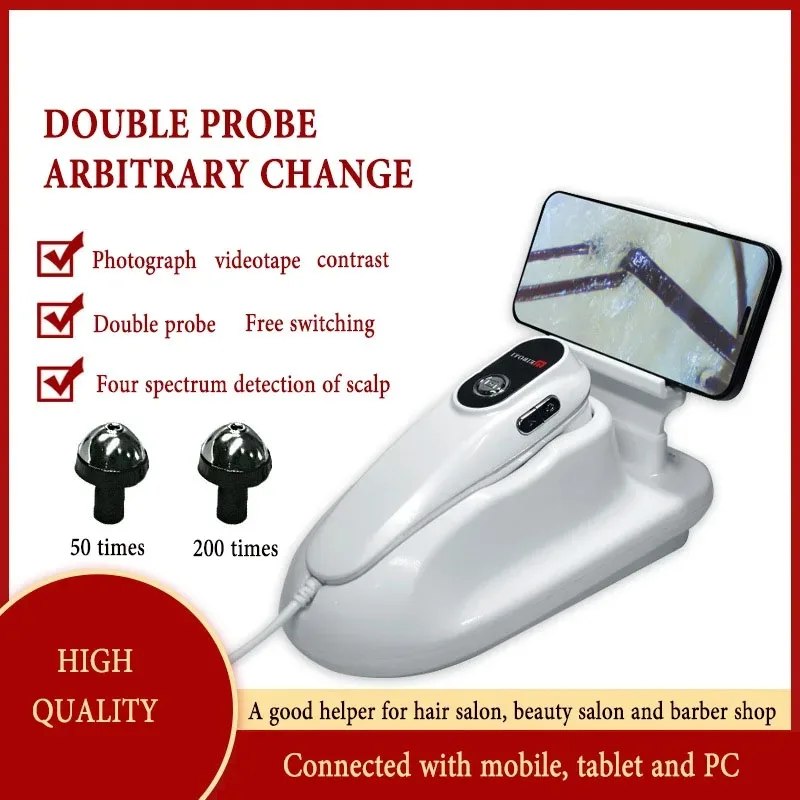
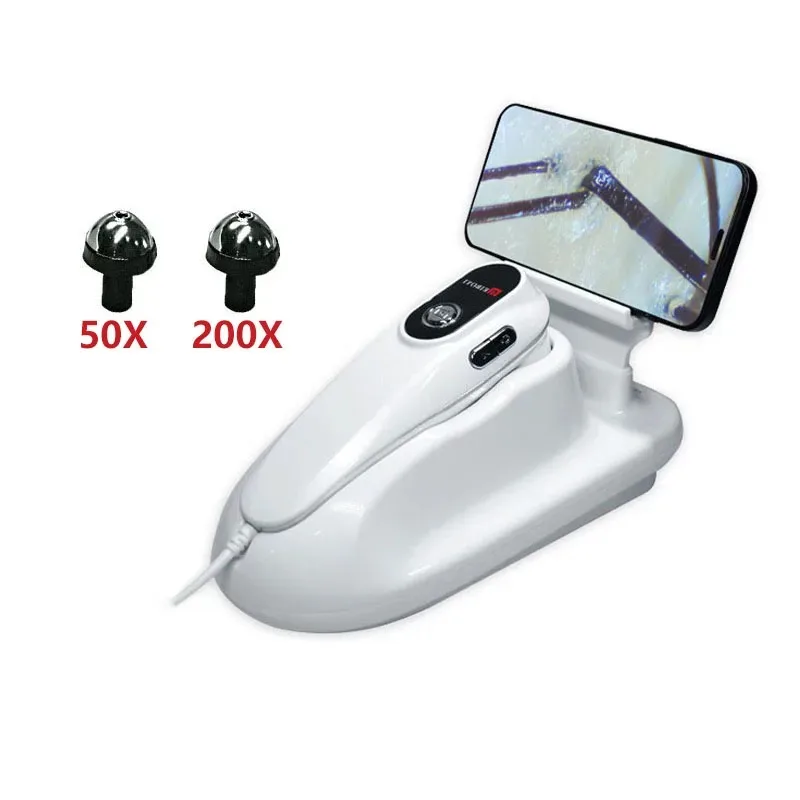
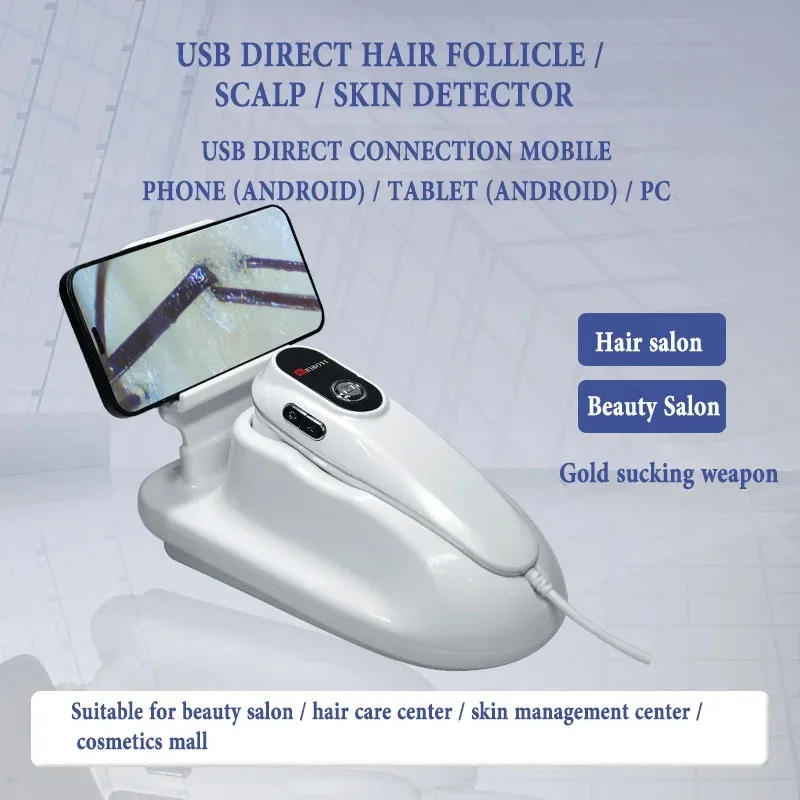
2025 Upgrade 50x/200x UV Skin Analyzer Usb Scalp Dermal Detector Microscope Skin Hair Follicle Pores Testing for Windows Android
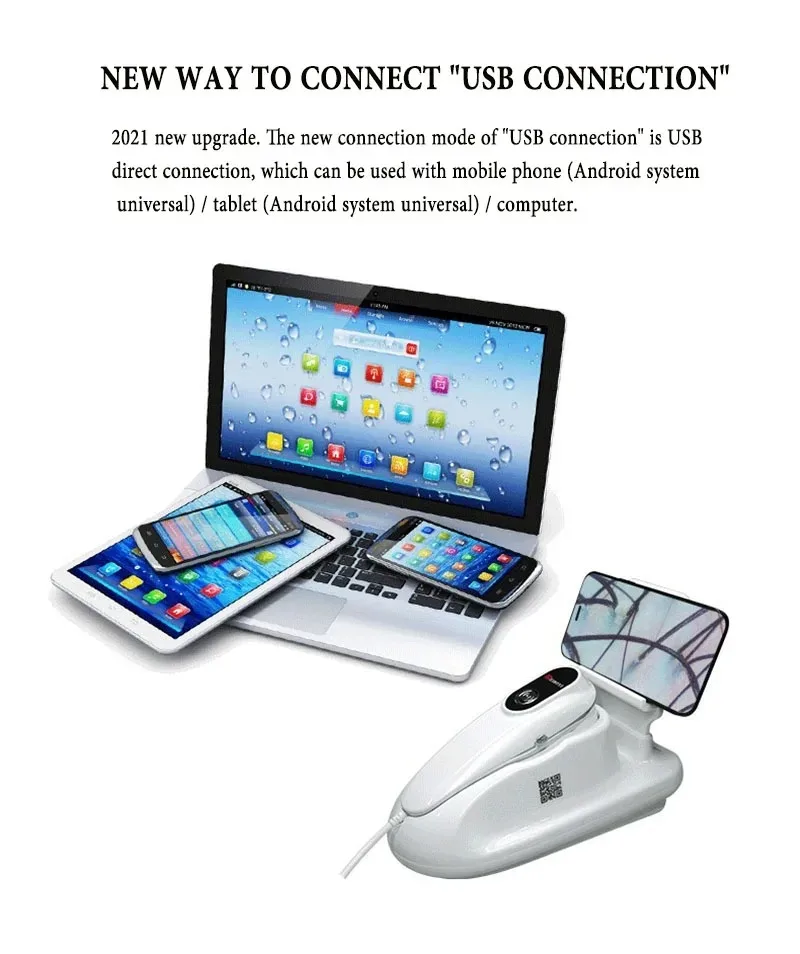
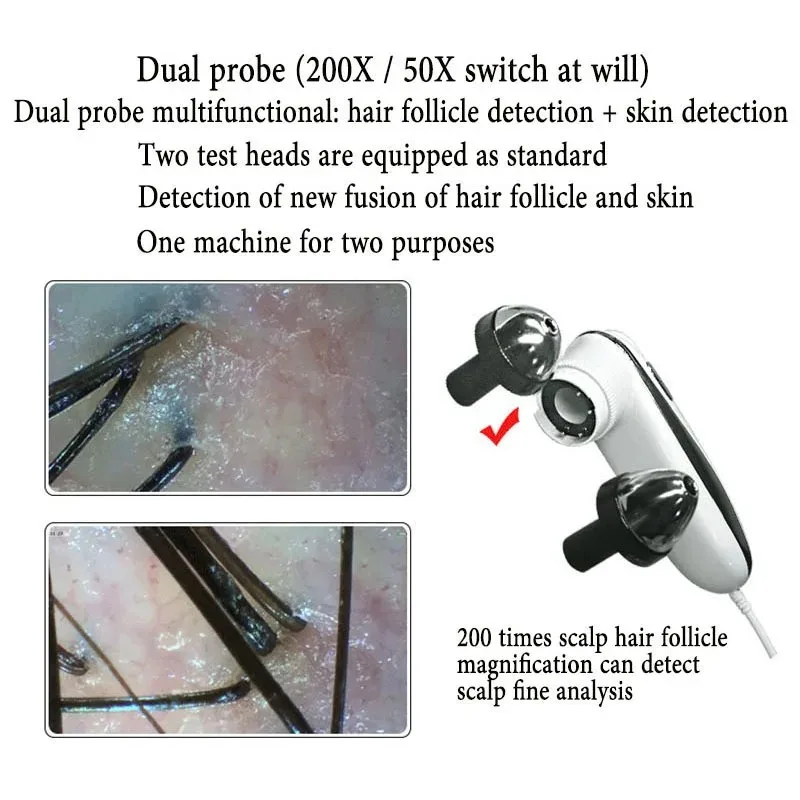
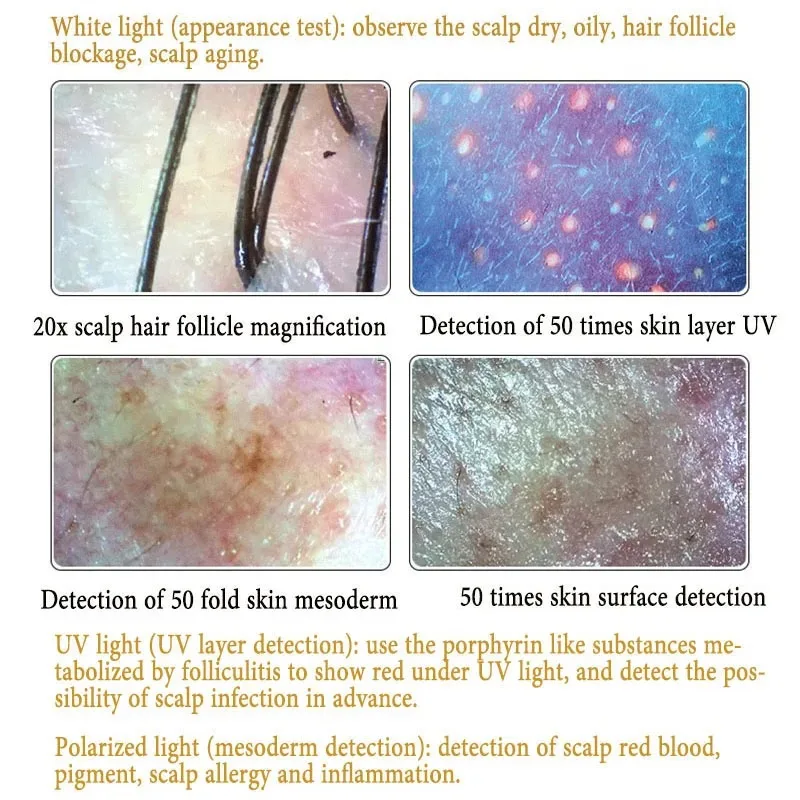
<br/><p style="font-family:OpenSans;font-size:14px;font-weight:300;line-height:20px;text-align:center;white-space:pre-wrap;color:rgb(0, 0, 0);margin-bottom:12px" class="detail-desc-decorate-content" align="center"><span style="font-size:26px;font-family:tahoma, geneva, sans-serif"><strong>2025 Upgrade 50x/200x UV Skin Analyzer Usb Scalp Dermal Detector Microscope Skin Hair Follicle Pores Testing for Windows Android</strong></span></p><p style="font-family:OpenSans;font-size:14px;font-weight:300;line-height:20px;text-align:left;white-space:pre-wrap;color:rgb(0, 0, 0);margin-bottom:12px" class="detail-desc-decorate-content" align="left"><span style="font-size:20px;font-family:verdana, geneva, sans-serif"><span style="color:rgb(0, 0, 0);font-size:20px;font-family:verdana, geneva, sans-serif"><strong>Use Instruction : </strong></span></span><span style="font-size:20px;font-family:verdana, geneva, sans-serif"><span style="color:rgb(0, 0, 0);font-size:20px;font-family:verdana, geneva, sans-serif"><br/>1. Select the handle USB/Type-C to connect to the mobile phone, open the app, and click online use.<br/>2. For computer use, the handle is directly connected to the computer's USB port, and for my computer—video equipment/camera—use.<br/>3. The handle is connected to the phone, and the probe light is on to indicate that the connection is successful.<br/>4. Handheld USB connection will use the power of the phone when it is used. Connecting the power through the dock can switch to the power of the dock.<br/>5. The instrument is equipped with 50 times triple spectrum/200 times single spectrum dual probes, and the probes can be switched according to the needs.<br/><br/></span></span><span style="font-size:20px;font-family:verdana, geneva, sans-serif"><span style="color:rgb(0, 0, 0);font-size:20px;font-family:verdana, geneva, sans-serif"><strong>Precautions:</strong></span></span><span style="font-size:20px;font-family:verdana, geneva, sans-serif"><span style="color:rgb(0, 0, 0);font-size:20px;font-family:verdana, geneva, sans-serif"><br/>When the handle is connected to the mobile phone, there is no "online" display when opening the app,<br/>Please restart the app after opening OTG in the "Settings" of the mobile phone.</span></span></p><div class="detailmodule_text"><p style="font-family:OpenSans;font-size:14px;font-weight:300;line-height:20px;text-align:left;white-space:pre-wrap;color:rgb(0, 0, 0);margin-bottom:12px" class="detail-desc-decorate-content" align="left"></p></div><br/>
$283.805
$142.895
- Category : Beauty & Health
- Brand : vilnason_haoyue_store VILNASON HAOYUE Store
Colors
Sizes
-
+

<br/><p style="font-family:OpenSans;font-size:14px;font-weight:300;line-height:20px;text-align:center;white-space:pre-wrap;color:rgb(0, 0, 0);margin-bottom:12px" class="detail-desc-decorate-content" align="center"><span style="font-size:26px;font-family:tahoma, geneva, sans-serif"><strong>2025 Upgrade 50x/200x UV Skin Analyzer Usb Scalp Dermal Detector Microscope Skin Hair Follicle Pores Testing for Windows Android</strong></span></p><p style="font-family:OpenSans;font-size:14px;font-weight:300;line-height:20px;text-align:left;white-space:pre-wrap;color:rgb(0, 0, 0);margin-bottom:12px" class="detail-desc-decorate-content" align="left"><span style="font-size:20px;font-family:verdana, geneva, sans-serif"><span style="color:rgb(0, 0, 0);font-size:20px;font-family:verdana, geneva, sans-serif"><strong>Use Instruction : </strong></span></span><span style="font-size:20px;font-family:verdana, geneva, sans-serif"><span style="color:rgb(0, 0, 0);font-size:20px;font-family:verdana, geneva, sans-serif"><br/>1. Select the handle USB/Type-C to connect to the mobile phone, open the app, and click online use.<br/>2. For computer use, the handle is directly connected to the computer's USB port, and for my computer—video equipment/camera—use.<br/>3. The handle is connected to the phone, and the probe light is on to indicate that the connection is successful.<br/>4. Handheld USB connection will use the power of the phone when it is used. Connecting the power through the dock can switch to the power of the dock.<br/>5. The instrument is equipped with 50 times triple spectrum/200 times single spectrum dual probes, and the probes can be switched according to the needs.<br/><br/></span></span><span style="font-size:20px;font-family:verdana, geneva, sans-serif"><span style="color:rgb(0, 0, 0);font-size:20px;font-family:verdana, geneva, sans-serif"><strong>Precautions:</strong></span></span><span style="font-size:20px;font-family:verdana, geneva, sans-serif"><span style="color:rgb(0, 0, 0);font-size:20px;font-family:verdana, geneva, sans-serif"><br/>When the handle is connected to the mobile phone, there is no "online" display when opening the app,<br/>Please restart the app after opening OTG in the "Settings" of the mobile phone.</span></span></p><div class="detailmodule_text"><p style="font-family:OpenSans;font-size:14px;font-weight:300;line-height:20px;text-align:left;white-space:pre-wrap;color:rgb(0, 0, 0);margin-bottom:12px" class="detail-desc-decorate-content" align="left"></p></div><br/>
Related Product
Browse The Collection of Top Products.