2025New Rechargeable Wireless Bluetooth Mouse Silent WIRELESS COMPUT MOUS USB Ergonomic Gamer Mouse For Computer Laptop Macbook
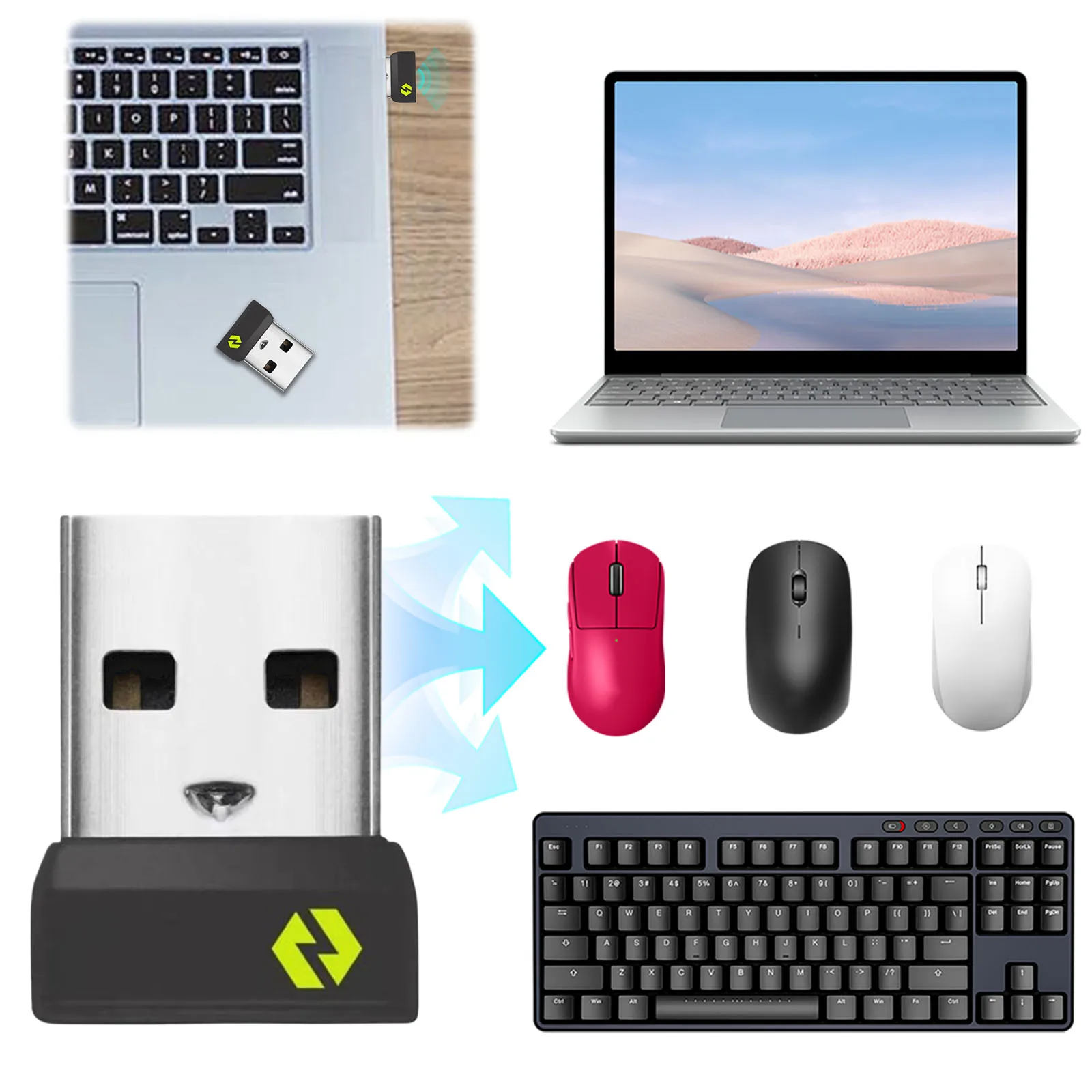
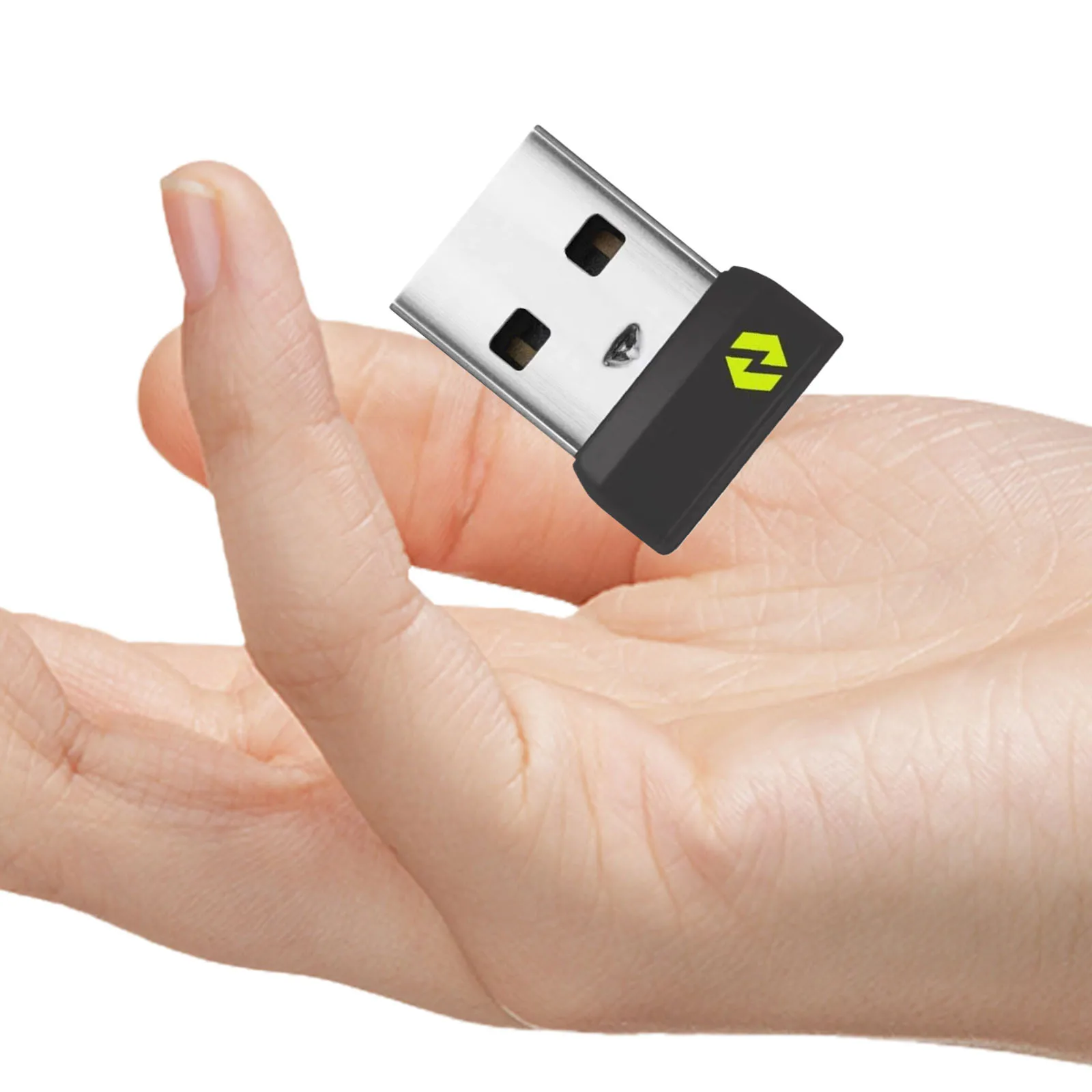
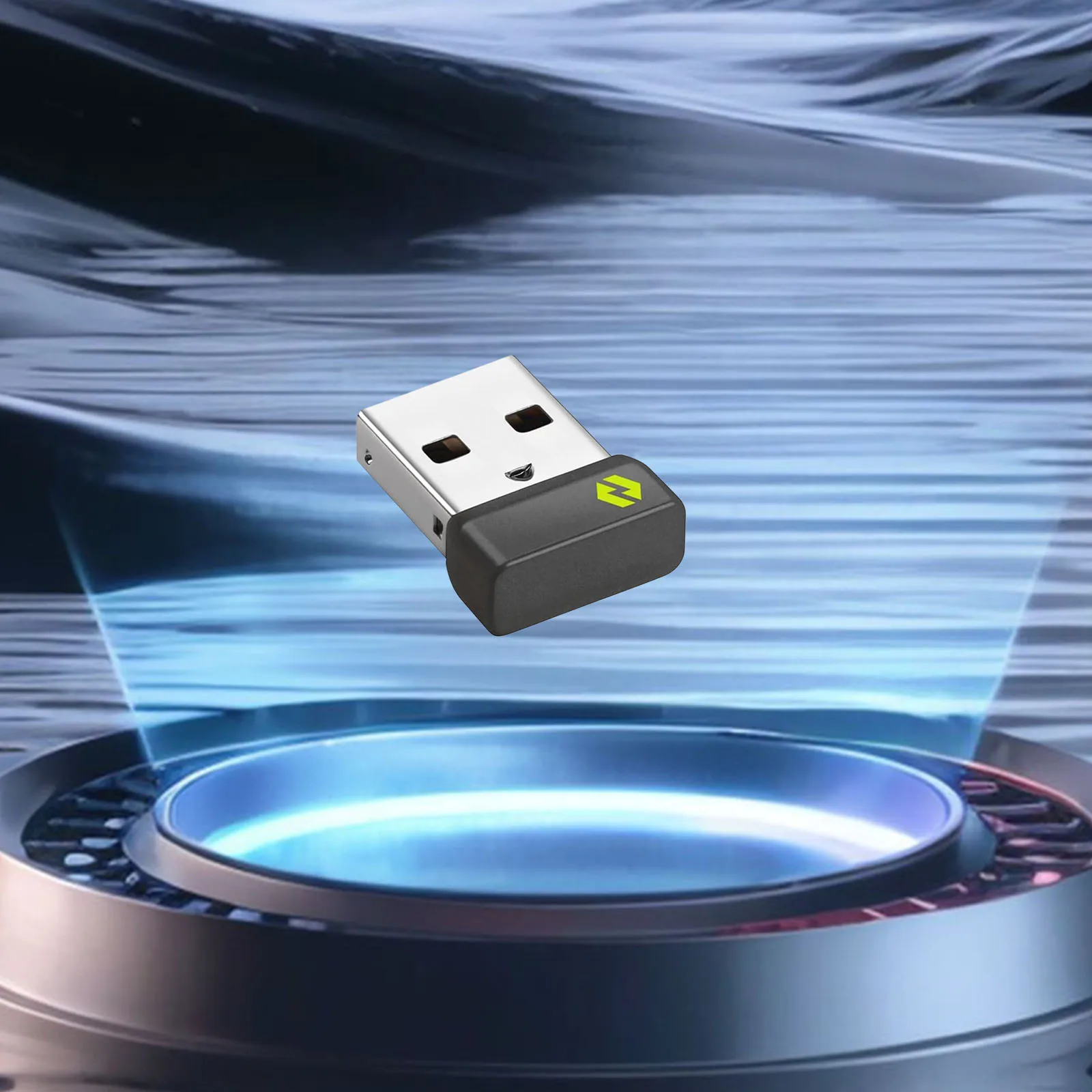
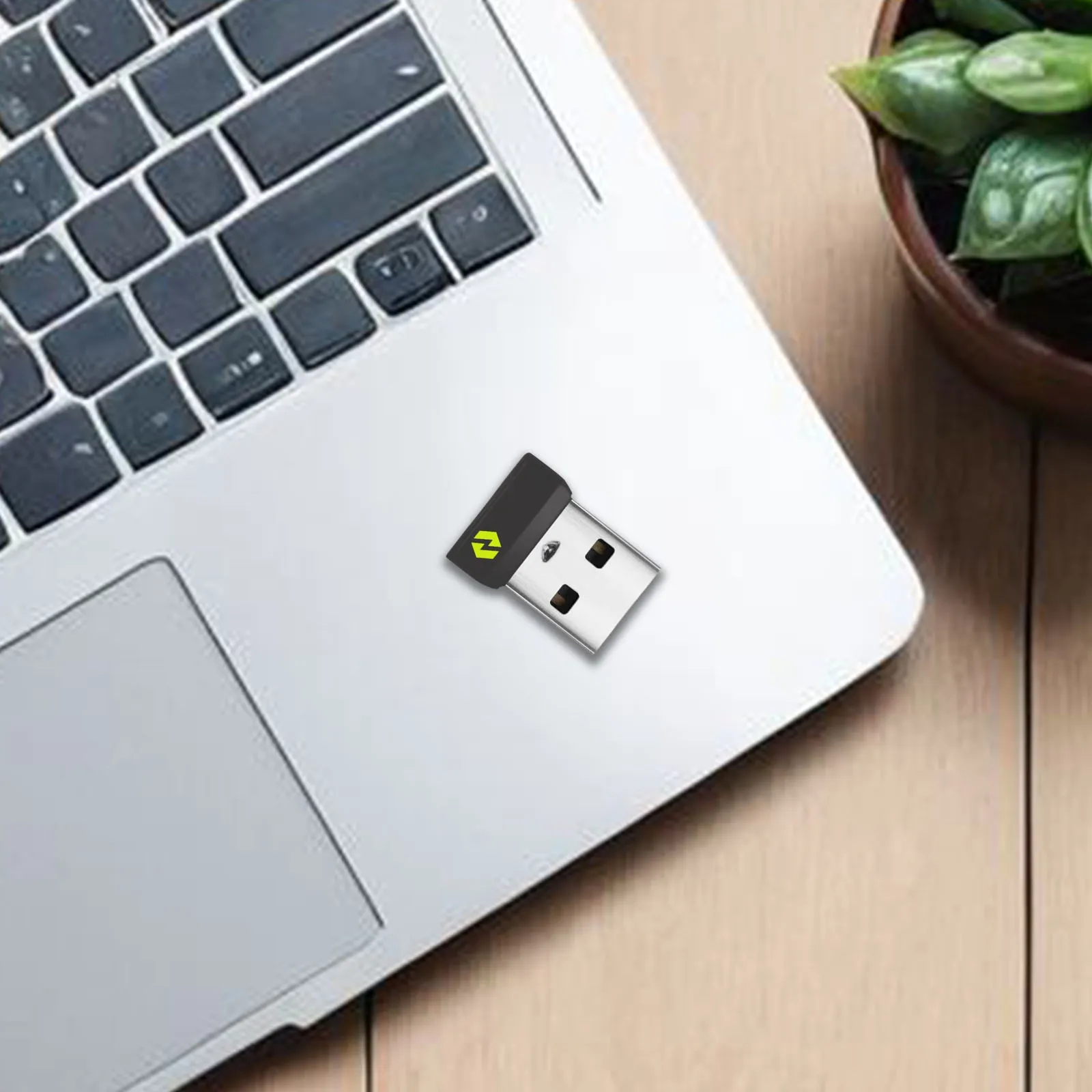
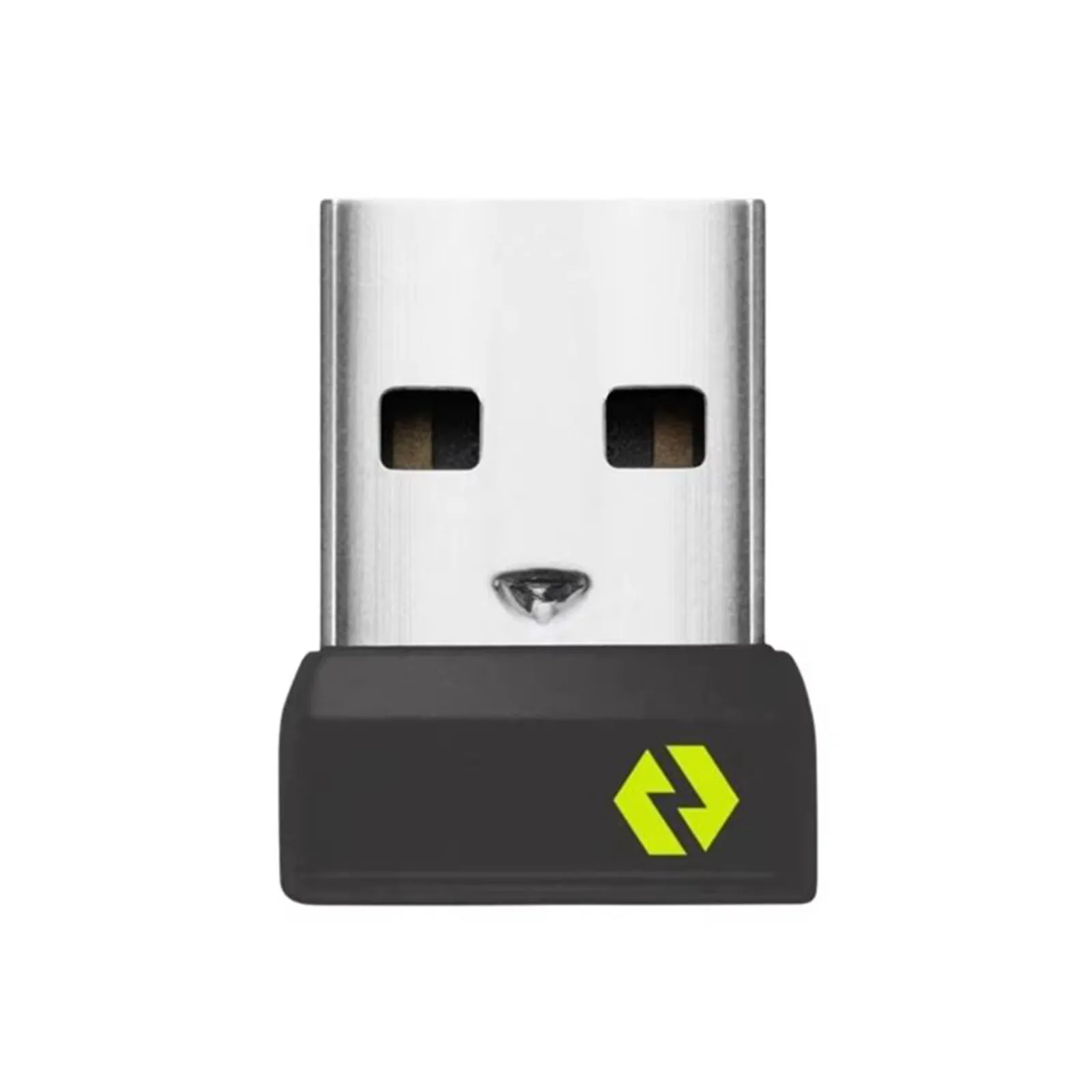
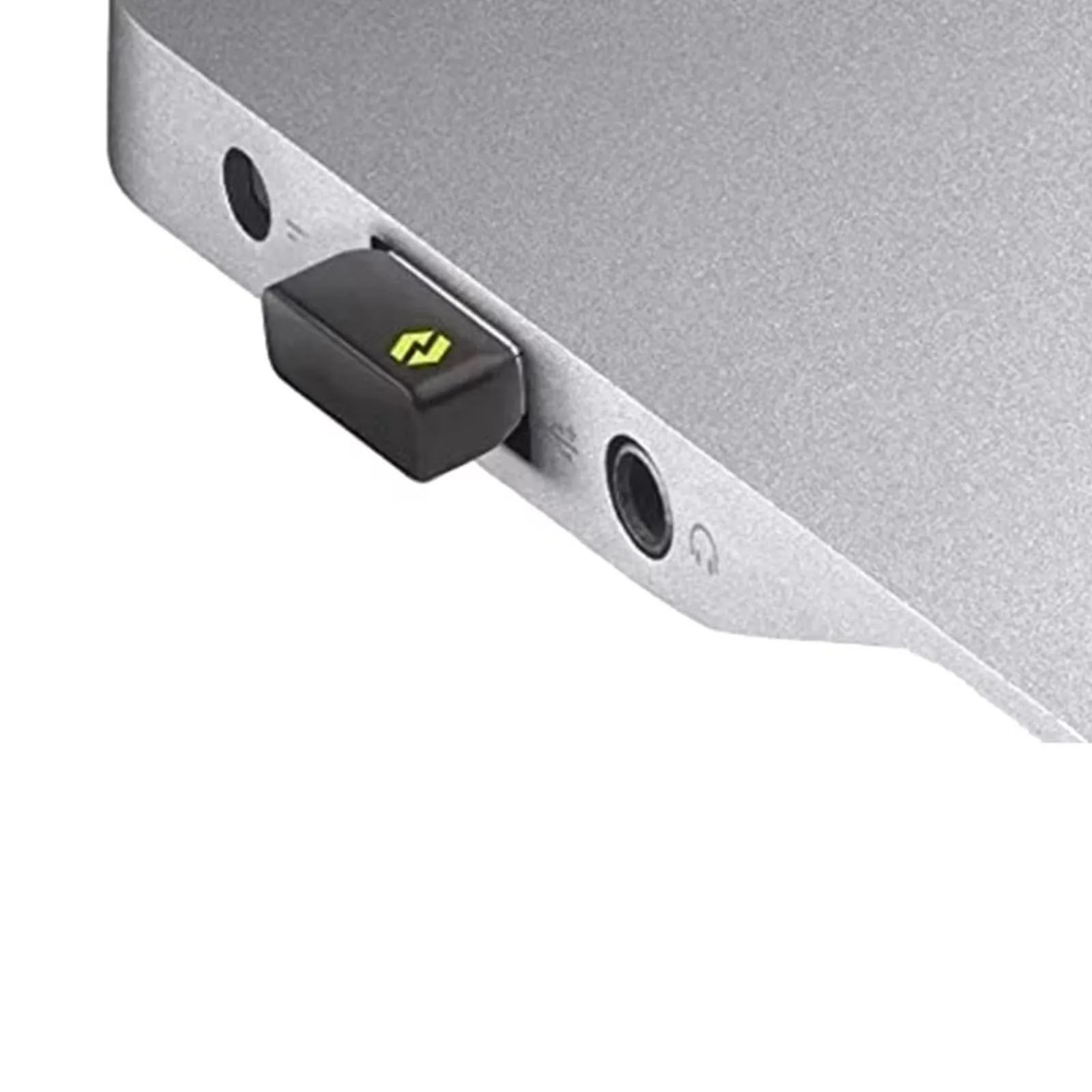
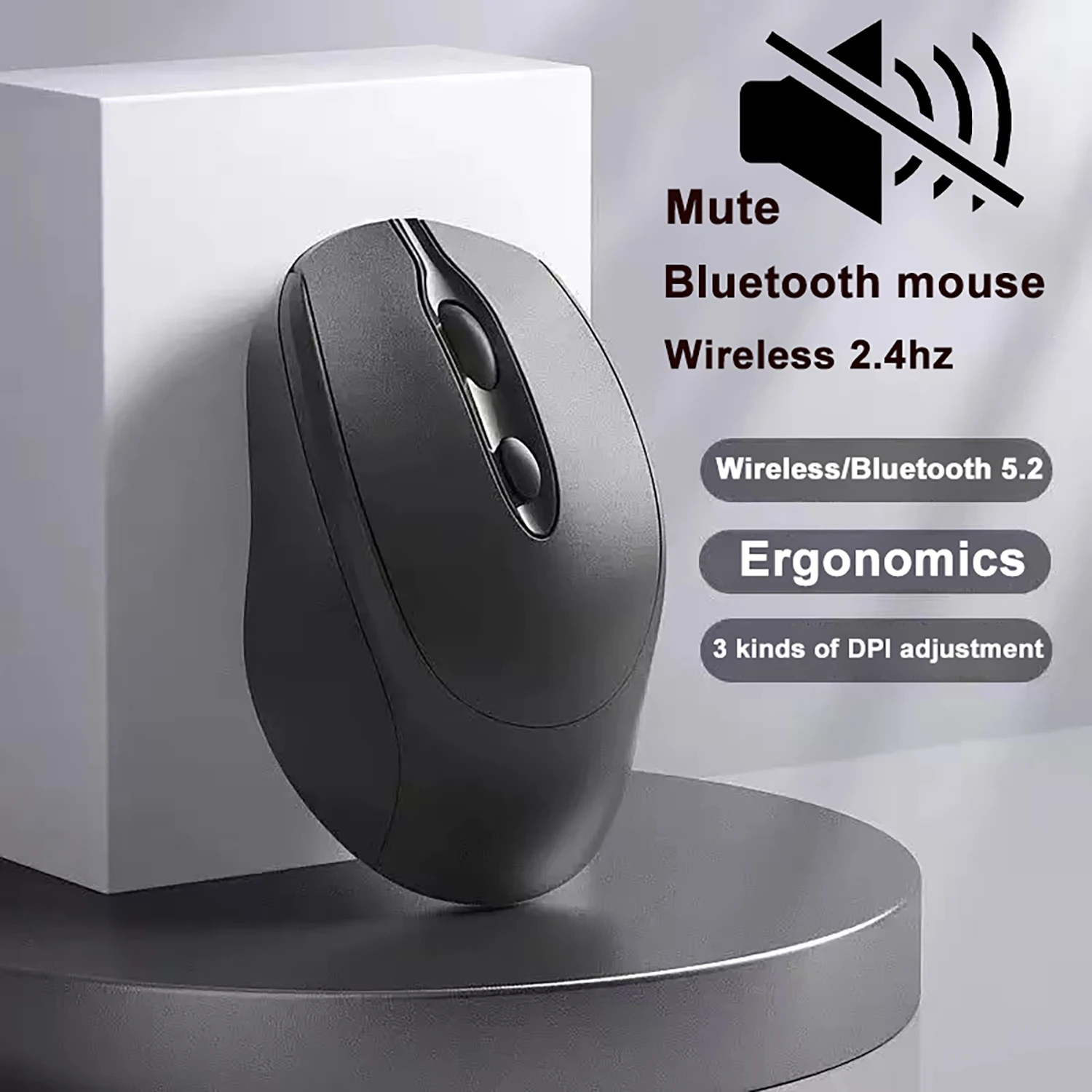
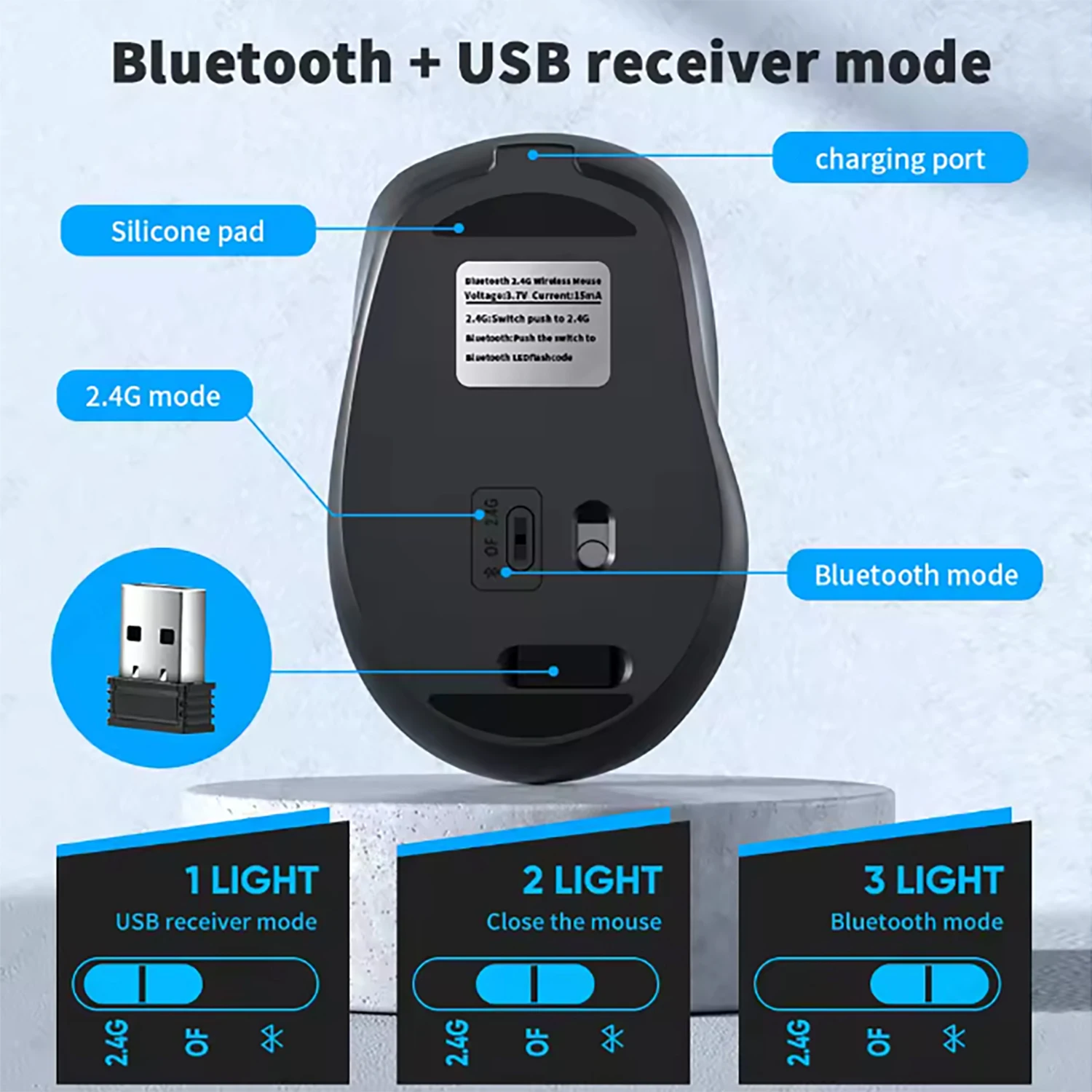
<p>① Insert the USB receiver into the USB socket of the PC or laptop (for the first time when connecting to the device via USB, please wait for about 15 seconds and wait for the driver to be automatically installed), push the switch of the mouse to "2.4G", and it can be used. (Note: If nothing happens when plugging in the USB receiver, try plugging it into another USB socket.)</p><p><br/></p><p>② Push the mouse switch to "Bluetooth", open the Bluetooth list of the mobile phone or tablet or laptop to find "BT 3.0 Mouse" or "BT 5.2 Mouse", click connect to use.</p><p><br/></p><p>Note: The mouse only supports connecting to one device. When using Bluetooth connection, it cannot be connected with a USB receiver.</p><p><br/></p><p>Dual mode mute office mouse</p><p><br/></p><p>Bluetooth + USB connection mode, mute button, multi-color optional.</p><p><br/></p><p></p>
$17.57
$9.785
- Category : Computer & Office
- Brand : obame_discount_store OBAME Discount Store
Colors
Sizes
-
+

<p>① Insert the USB receiver into the USB socket of the PC or laptop (for the first time when connecting to the device via USB, please wait for about 15 seconds and wait for the driver to be automatically installed), push the switch of the mouse to "2.4G", and it can be used. (Note: If nothing happens when plugging in the USB receiver, try plugging it into another USB socket.)</p><p><br/></p><p>② Push the mouse switch to "Bluetooth", open the Bluetooth list of the mobile phone or tablet or laptop to find "BT 3.0 Mouse" or "BT 5.2 Mouse", click connect to use.</p><p><br/></p><p>Note: The mouse only supports connecting to one device. When using Bluetooth connection, it cannot be connected with a USB receiver.</p><p><br/></p><p>Dual mode mute office mouse</p><p><br/></p><p>Bluetooth + USB connection mode, mute button, multi-color optional.</p><p><br/></p><p></p>
Related Product
Browse The Collection of Top Products.