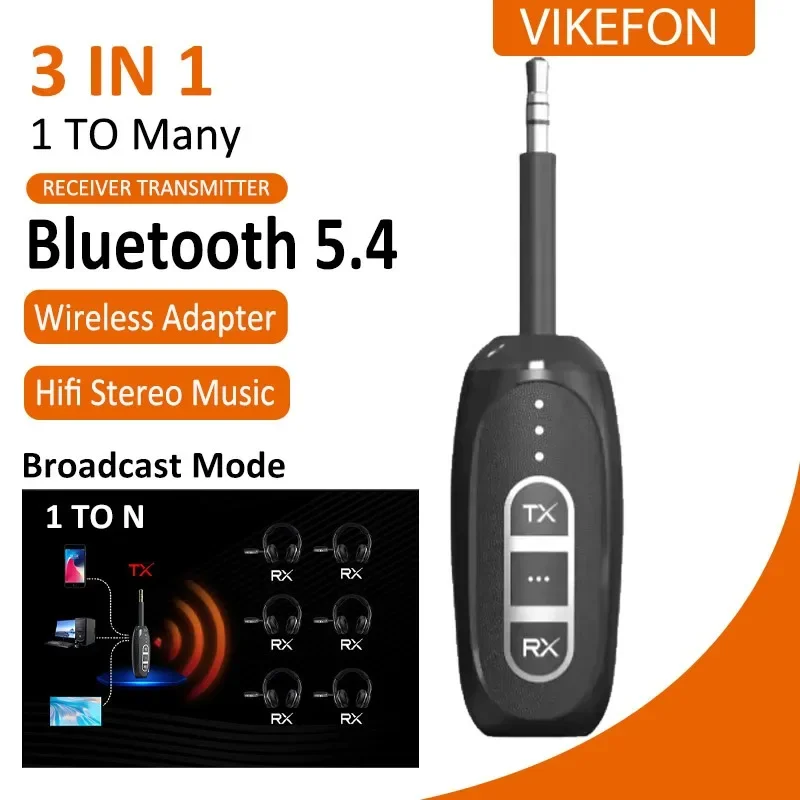
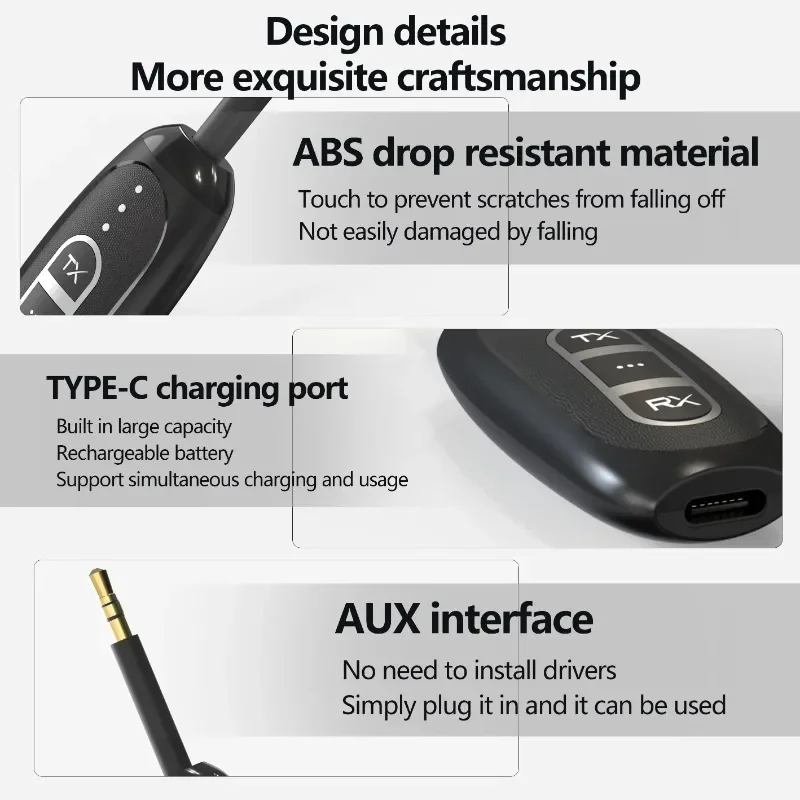
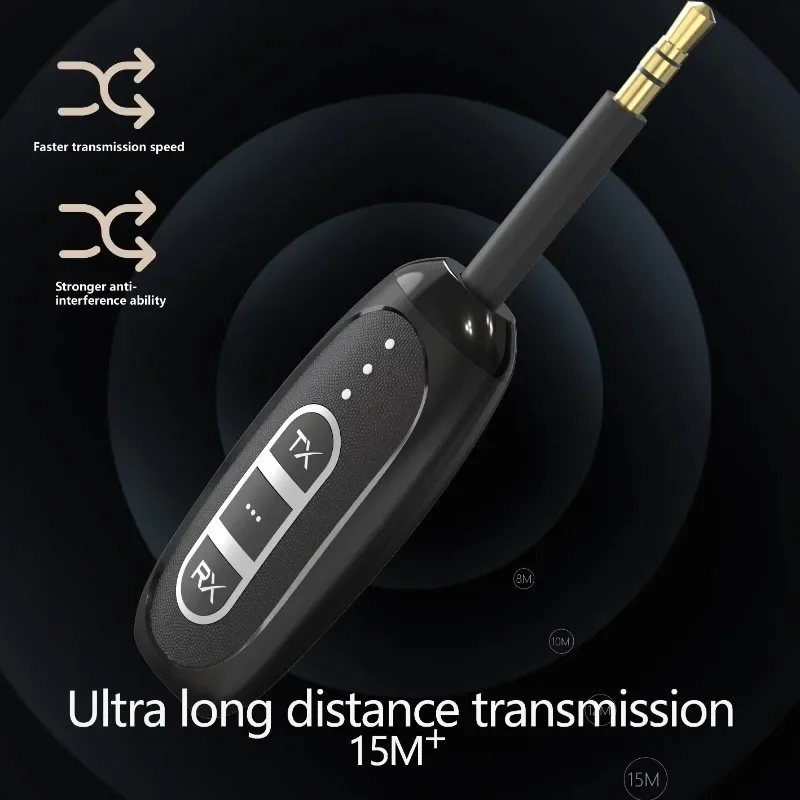
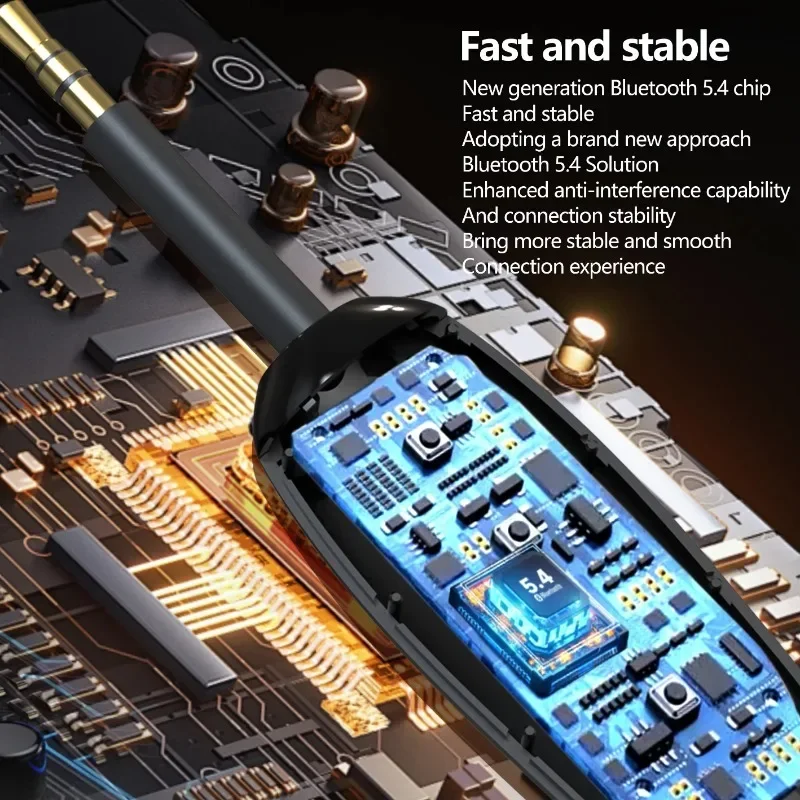

3 in 1 Bluetooth 5.4 Transmitter and Receiver 3.5mm Hifi Stereo Music Wireless Audio Adapter For TV Car kit Headphones Speaker
<div class="detailmodule_html"><div class="detail-desc-decorate-richtext"><p><span style="font-size:20px;"><strong>Mode description:</strong></span><br>
TX: There are two working modes: Bluetooth (TX green light on) and broadcast (TX blue light on). Double clicking the TX button can switch between the two Switching;<br>
RX: There are two working modes: Bluetooth (RX green light on) and Broadcast (RX blue light on). Double clicking the RX button can switch between the two modes Switching;<br>
2. Functional operation<br>
1) Turn on/off<br>
Press and hold the power button for 2 seconds to turn on/off the device;<br>
2) Automatic shutdown function<br>
The device automatically shuts down after 15 minutes of no connection and needs to be restarted to wake up. (Note: It will not automatically shut down in TX broadcast mode)<br>
3) Low battery alarm prompt<br>
When the device is low on battery, the charging red light flashes;<br>
4) TX/RX mode switching (switching interval time should not be less than 3S)<br>
Double click the TX button, the TX indicator light will turn on, and enter TX mode;<br>
Double click the RX button, the RX indicator light will turn on, and enter RX mode;<br>
5) Bluetooth/broadcast mode switching (please do not switch interval less than 3S)<br>
When in TX mode: Double clicking the TX button can switch between Bluetooth (TX green light on) and broadcast (TX blue light on) working modes;<br>
When in RX mode: Double clicking the RX button can switch between Bluetooth (RX green light on) and broadcast (RX blue light on) working modes;<br>
6) Audio source input switching (TX mode)<br>
In TX mode, double-click the power button to switch the input audio source.<br>
When in TX Bluetooth mode, it can switch between AUX/USB (connected to PC) audio;<br>
When in TX broadcast mode, it can switch between BT/AUX/USB (connected to PC) audio.<br>
<br>
<span style="font-size:20px;"><strong>TX transmission - Bluetooth mode:</strong></span><br>
This device can be used in conjunction with a TV to wirelessly forward sound to Bluetooth earphones or speakers.<br>
Operation steps:<br>
A, Turn on the Bluetooth speaker or Bluetooth headset waiting to be connected and place it in pairing mode;<br>
B, Press and hold the device power button for 2 seconds, and the device's power on LED light will turn on. Double click the TX button to switch the device to "TX" mode, and the TX light will turn on;<br>
C, In TX mode, double-click the TX button again to switch the device to TX Bluetooth working mode (the "TX" green light is on);<br>
D, Insert the 3.5mm audio head on the device into the audio output interface of the TV at home;<br>
<br>
Note: You can double-click the power button to switch audio input sources!<br>
① AUX audio input: The audio blue light on the device lights up, and the sound is input through the 3.5mm audio plug of the device;<br>
② USB audio input: The audio green light on the device lights up, and the device is connected to the PC through the USB port to forward the sound on the PC;<br>
E, The device automatically enters the search pairing state (the "TX" green light flashes rapidly);<br>
F, After successful connection, the "TX" green light on the device flashes slowly, and sound can be heard from the Bluetooth speaker or headphones.<br>
<br>
Note:<br>
① Different Bluetooth devices (such as Bluetooth earphones) may have different search connection times due to differences in their usage schemes and protocols. If the connection is not successful for a long time, you can restart the device and try connecting again;<br>
② The "TX" green light on the device flashes rapidly, indicating the search for Bluetooth device status;<br>
③ The blue light on the device indicates AUX audio input, and you can double-click the power button to switch the audio input source;<br>
<br>
<span style="font-size:20px;"><strong>TX transmission - broadcast mode:</strong></span><br>
Cooperate with audio output devices to wirelessly send sound to broadcast receivers (the RX broadcast function of this device), which can connect multiple broadcast receivers simultaneously;<br>
Operation steps:<br>
A, Press and hold the device power button for 2 seconds, and the device's power on LED light will turn on. Double click the TX button to switch the device to "TX" mode, and the TX light will turn on;<br>
B, In TX mode, double-click the TX button again to switch the device to TX broadcast mode (the "TX" blue light is on);<br>
C, Insert the 3.5mm audio head on the device into the output interface of the audio source device;<br>
<br>
Note: You can double-click the power button to switch audio input sources!<br>
① AUX audio input: The audio blue light on the device lights up, and the sound is input through the 3.5mm audio plug of the device;<br>
② Bluetooth audio input: The audio white light on the device lights up, and the phone's Bluetooth can connect to this device (LE515max), then forward the phone's Bluetooth music;<br>
③ USB audio input: The audio green light on the device lights up, and the device is connected to the PC through the USB port to send the sound from the PC in groups;<br>
D, Turn on the broadcast receiver (RX broadcast function of this device) and place it in the broadcast receiving function; (See RX receiver - broadcast mode operation instructions)<br>
E, In broadcast mode, the device automatically connects. After successful connection, the "RX" blue light on the br<br>
<br>
</p>
</div></div>
$30.455
$30.455
- Category : Consumer Electronics
- Brand : vikefon_3c_whimsy_store VIKEFON 3C Whimsy Store
Colors
Sizes
-
+

<div class="detailmodule_html"><div class="detail-desc-decorate-richtext"><p><span style="font-size:20px;"><strong>Mode description:</strong></span><br>
TX: There are two working modes: Bluetooth (TX green light on) and broadcast (TX blue light on). Double clicking the TX button can switch between the two Switching;<br>
RX: There are two working modes: Bluetooth (RX green light on) and Broadcast (RX blue light on). Double clicking the RX button can switch between the two modes Switching;<br>
2. Functional operation<br>
1) Turn on/off<br>
Press and hold the power button for 2 seconds to turn on/off the device;<br>
2) Automatic shutdown function<br>
The device automatically shuts down after 15 minutes of no connection and needs to be restarted to wake up. (Note: It will not automatically shut down in TX broadcast mode)<br>
3) Low battery alarm prompt<br>
When the device is low on battery, the charging red light flashes;<br>
4) TX/RX mode switching (switching interval time should not be less than 3S)<br>
Double click the TX button, the TX indicator light will turn on, and enter TX mode;<br>
Double click the RX button, the RX indicator light will turn on, and enter RX mode;<br>
5) Bluetooth/broadcast mode switching (please do not switch interval less than 3S)<br>
When in TX mode: Double clicking the TX button can switch between Bluetooth (TX green light on) and broadcast (TX blue light on) working modes;<br>
When in RX mode: Double clicking the RX button can switch between Bluetooth (RX green light on) and broadcast (RX blue light on) working modes;<br>
6) Audio source input switching (TX mode)<br>
In TX mode, double-click the power button to switch the input audio source.<br>
When in TX Bluetooth mode, it can switch between AUX/USB (connected to PC) audio;<br>
When in TX broadcast mode, it can switch between BT/AUX/USB (connected to PC) audio.<br>
<br>
<span style="font-size:20px;"><strong>TX transmission - Bluetooth mode:</strong></span><br>
This device can be used in conjunction with a TV to wirelessly forward sound to Bluetooth earphones or speakers.<br>
Operation steps:<br>
A, Turn on the Bluetooth speaker or Bluetooth headset waiting to be connected and place it in pairing mode;<br>
B, Press and hold the device power button for 2 seconds, and the device's power on LED light will turn on. Double click the TX button to switch the device to "TX" mode, and the TX light will turn on;<br>
C, In TX mode, double-click the TX button again to switch the device to TX Bluetooth working mode (the "TX" green light is on);<br>
D, Insert the 3.5mm audio head on the device into the audio output interface of the TV at home;<br>
<br>
Note: You can double-click the power button to switch audio input sources!<br>
① AUX audio input: The audio blue light on the device lights up, and the sound is input through the 3.5mm audio plug of the device;<br>
② USB audio input: The audio green light on the device lights up, and the device is connected to the PC through the USB port to forward the sound on the PC;<br>
E, The device automatically enters the search pairing state (the "TX" green light flashes rapidly);<br>
F, After successful connection, the "TX" green light on the device flashes slowly, and sound can be heard from the Bluetooth speaker or headphones.<br>
<br>
Note:<br>
① Different Bluetooth devices (such as Bluetooth earphones) may have different search connection times due to differences in their usage schemes and protocols. If the connection is not successful for a long time, you can restart the device and try connecting again;<br>
② The "TX" green light on the device flashes rapidly, indicating the search for Bluetooth device status;<br>
③ The blue light on the device indicates AUX audio input, and you can double-click the power button to switch the audio input source;<br>
<br>
<span style="font-size:20px;"><strong>TX transmission - broadcast mode:</strong></span><br>
Cooperate with audio output devices to wirelessly send sound to broadcast receivers (the RX broadcast function of this device), which can connect multiple broadcast receivers simultaneously;<br>
Operation steps:<br>
A, Press and hold the device power button for 2 seconds, and the device's power on LED light will turn on. Double click the TX button to switch the device to "TX" mode, and the TX light will turn on;<br>
B, In TX mode, double-click the TX button again to switch the device to TX broadcast mode (the "TX" blue light is on);<br>
C, Insert the 3.5mm audio head on the device into the output interface of the audio source device;<br>
<br>
Note: You can double-click the power button to switch audio input sources!<br>
① AUX audio input: The audio blue light on the device lights up, and the sound is input through the 3.5mm audio plug of the device;<br>
② Bluetooth audio input: The audio white light on the device lights up, and the phone's Bluetooth can connect to this device (LE515max), then forward the phone's Bluetooth music;<br>
③ USB audio input: The audio green light on the device lights up, and the device is connected to the PC through the USB port to send the sound from the PC in groups;<br>
D, Turn on the broadcast receiver (RX broadcast function of this device) and place it in the broadcast receiving function; (See RX receiver - broadcast mode operation instructions)<br>
E, In broadcast mode, the device automatically connects. After successful connection, the "RX" blue light on the br<br>
<br>
</p>
</div></div>
Related Product
Browse The Collection of Top Products.