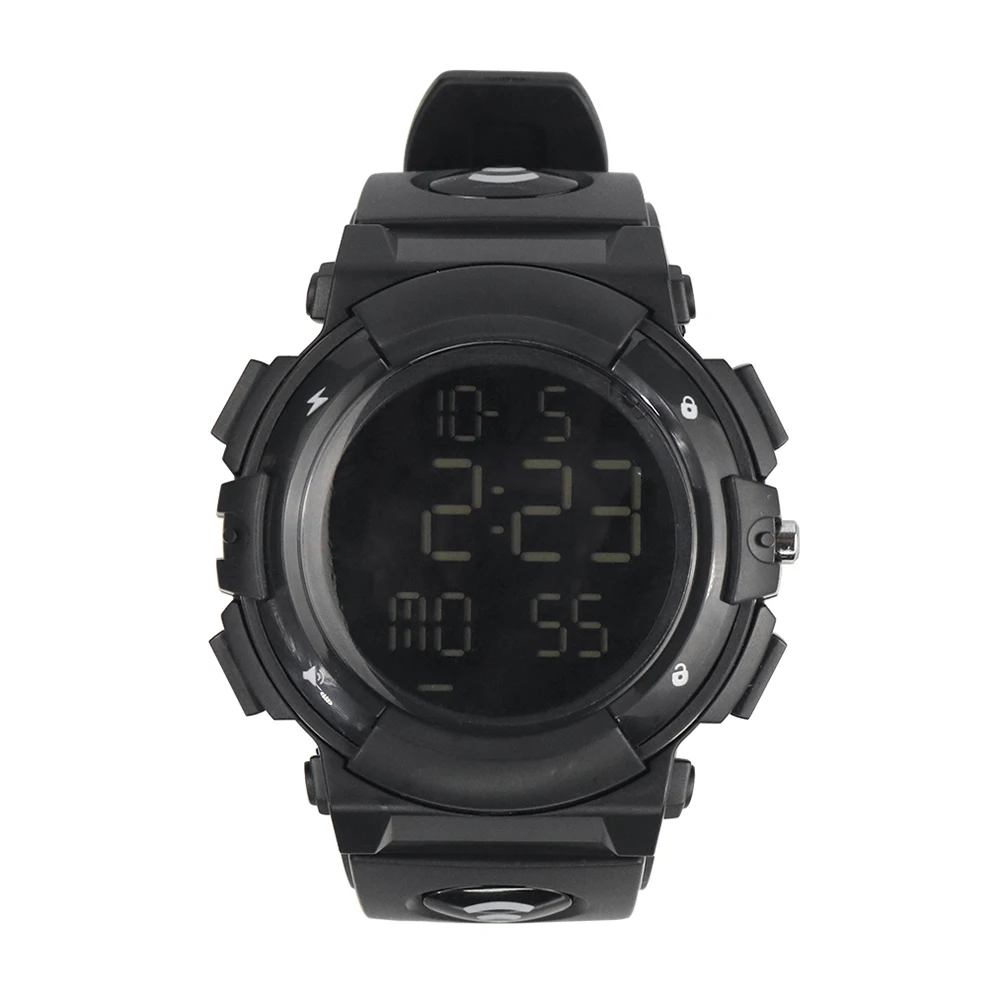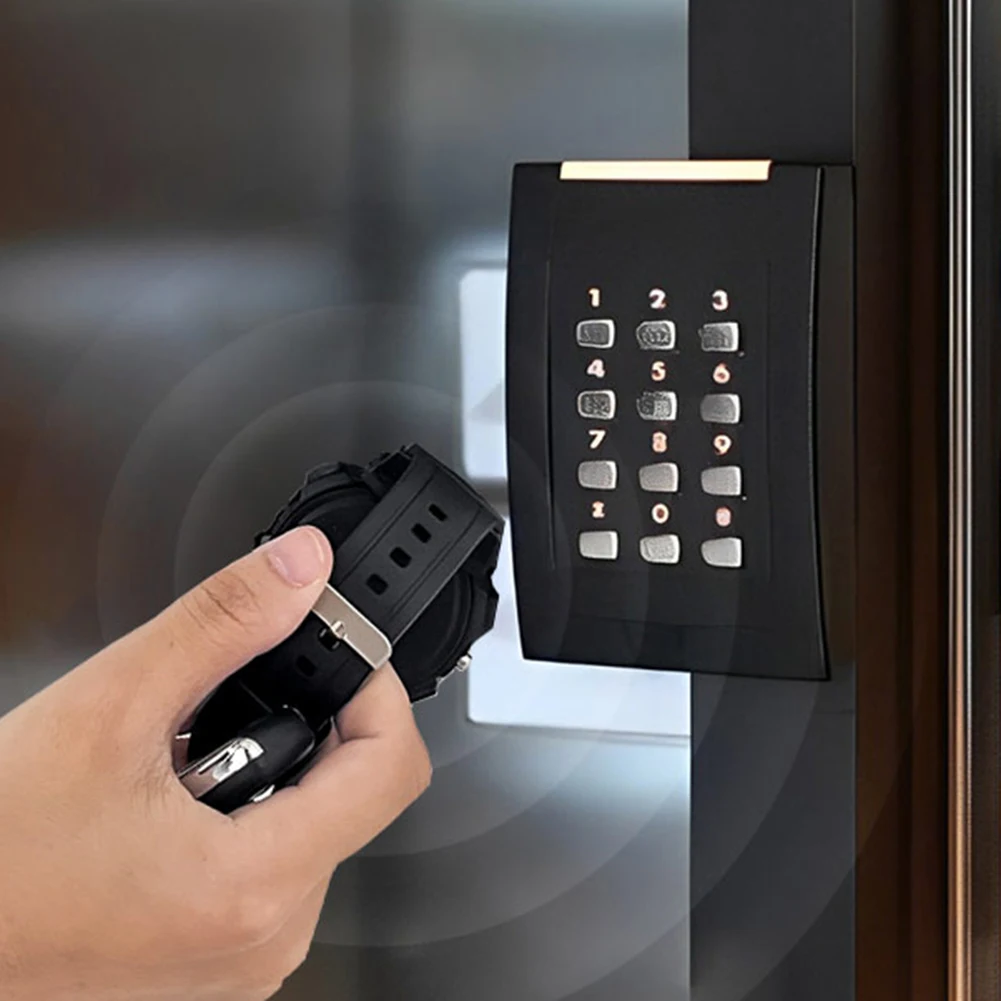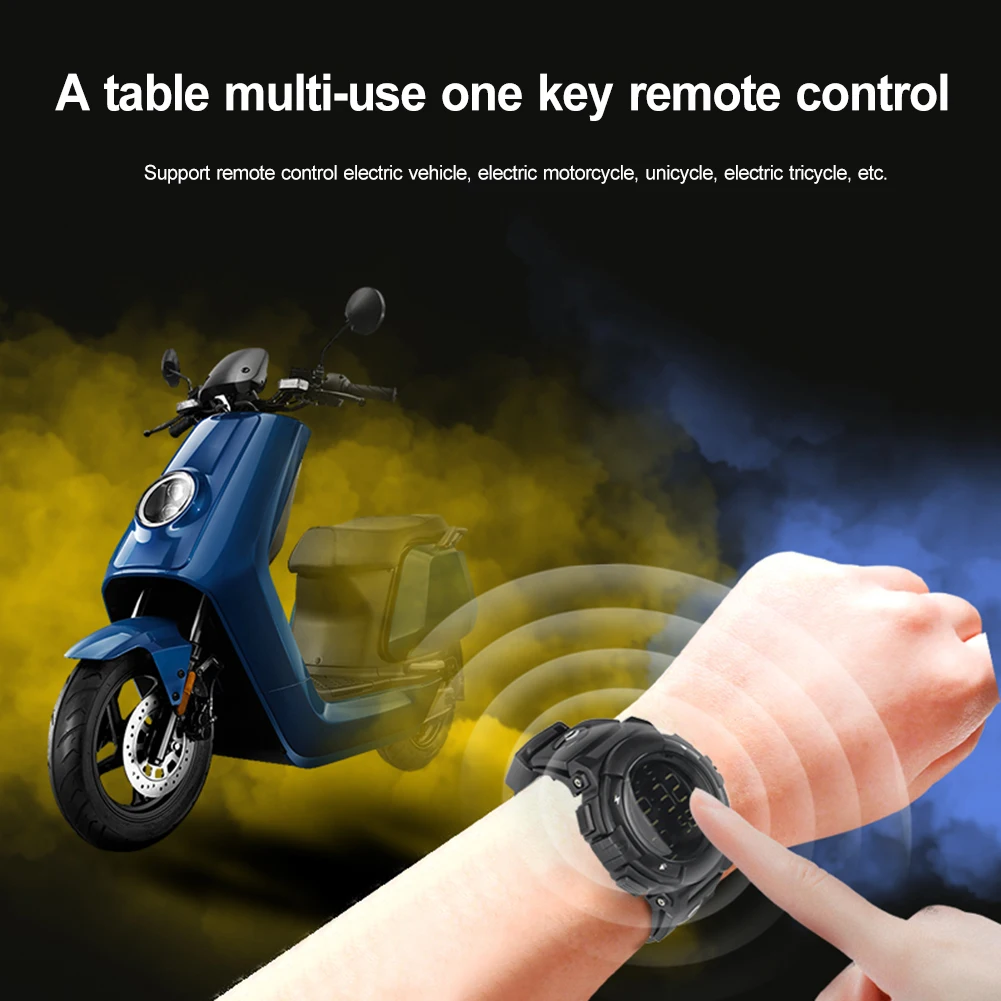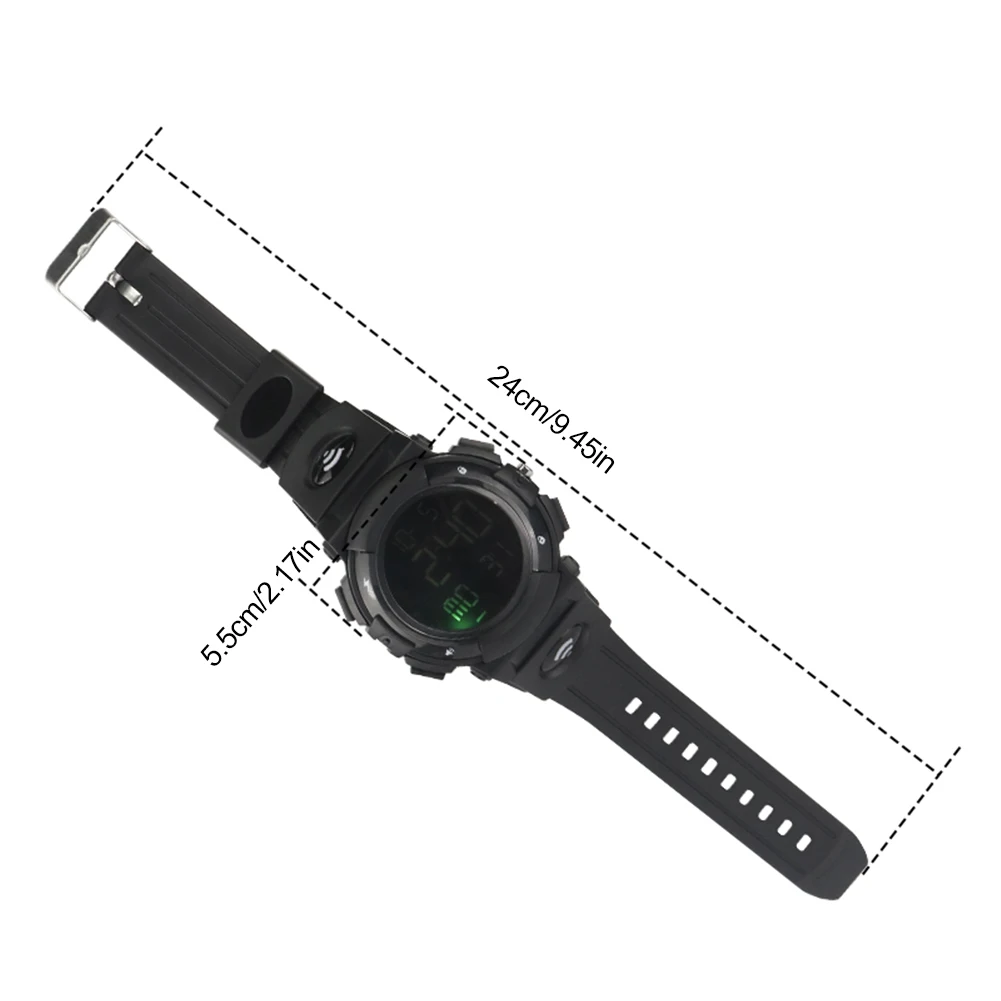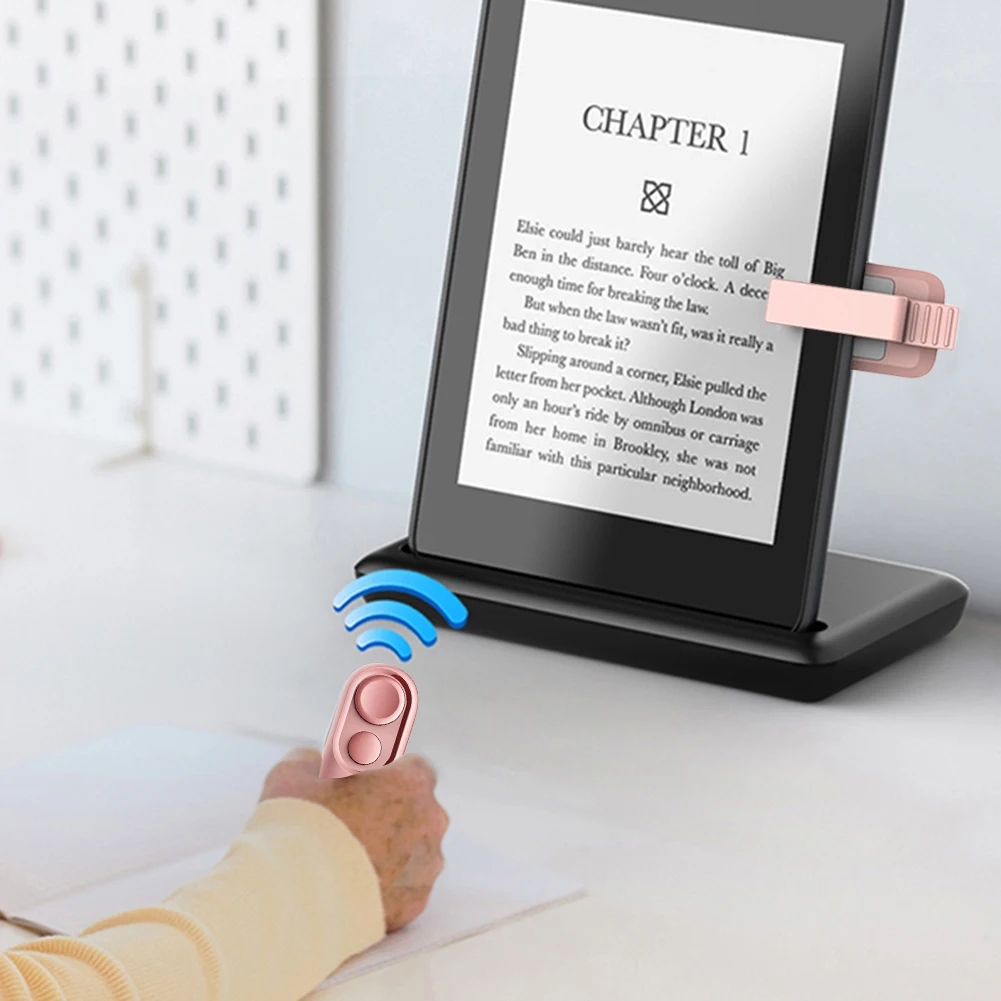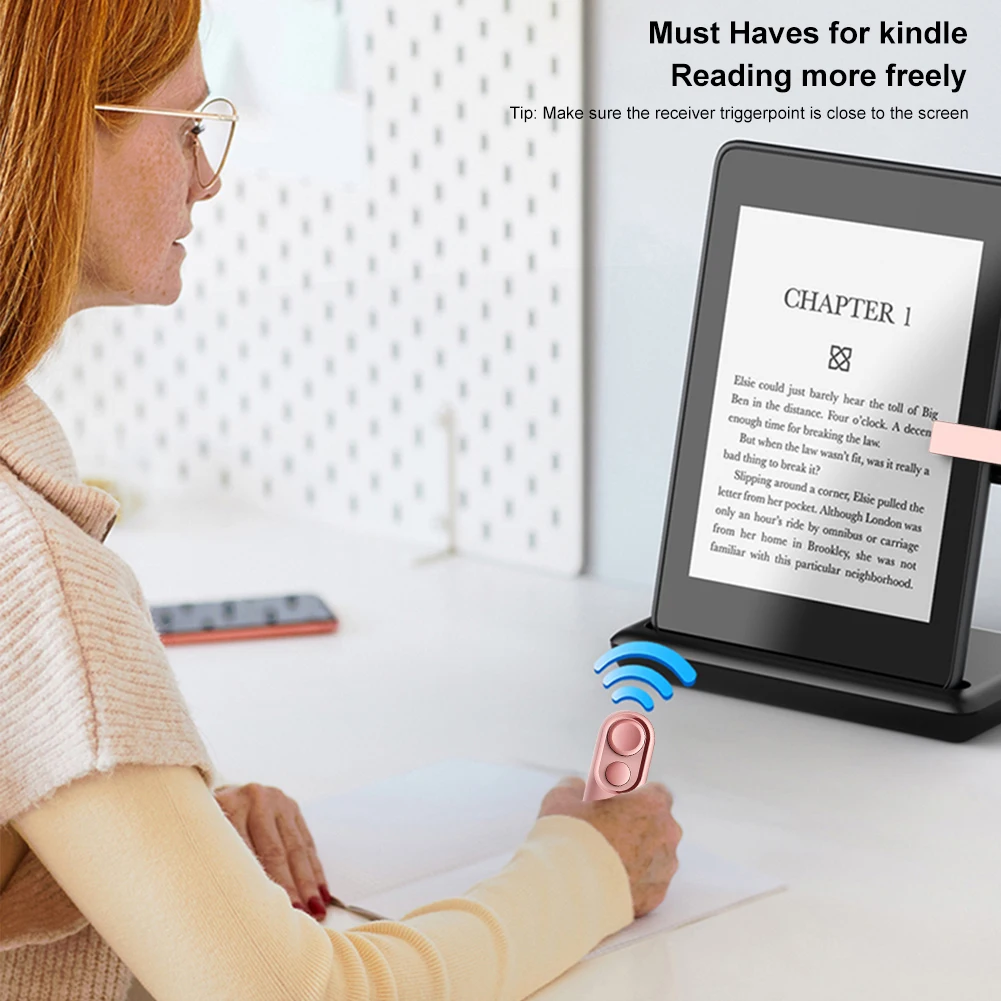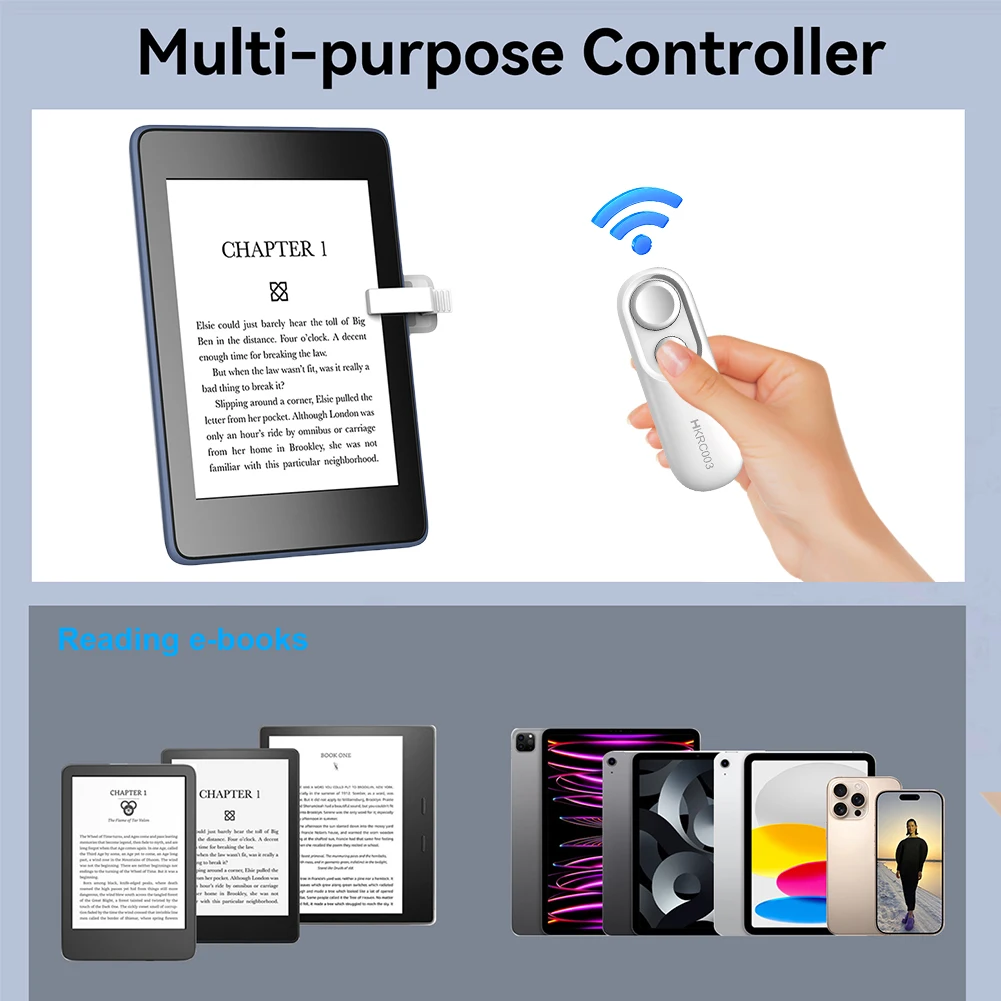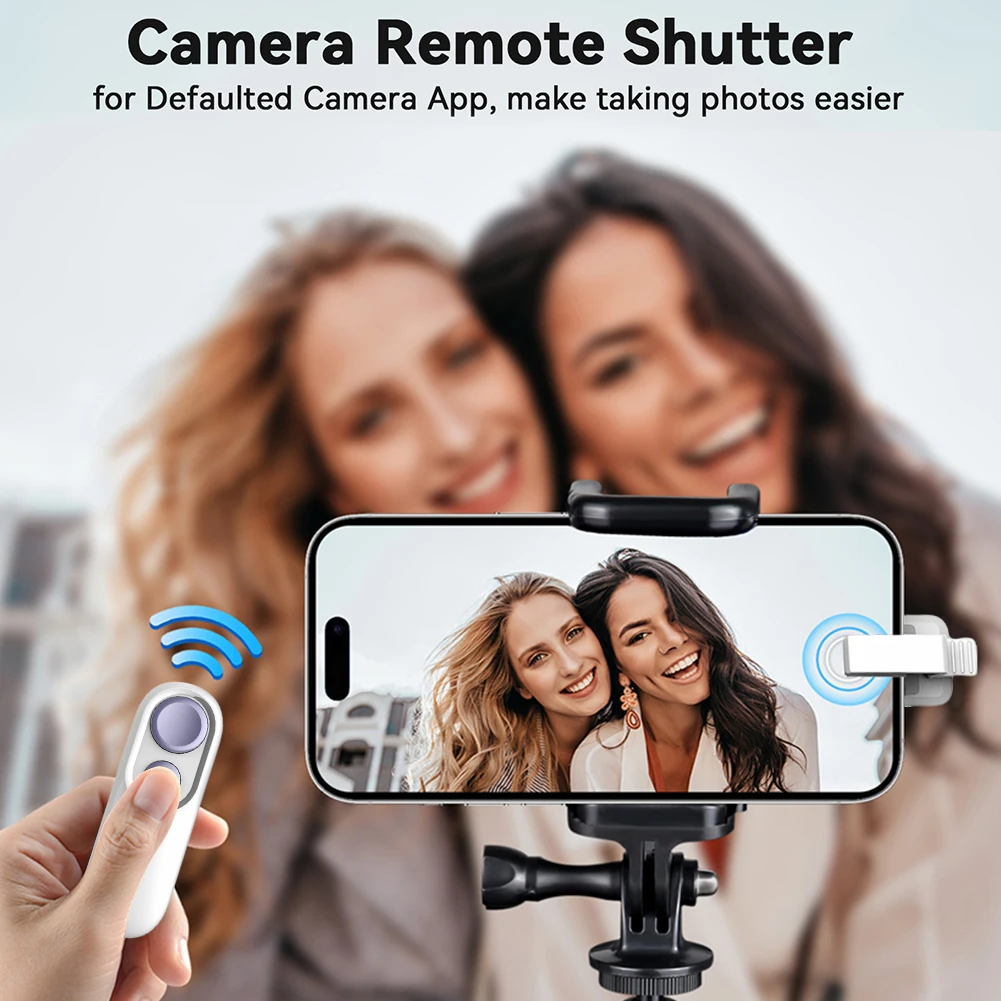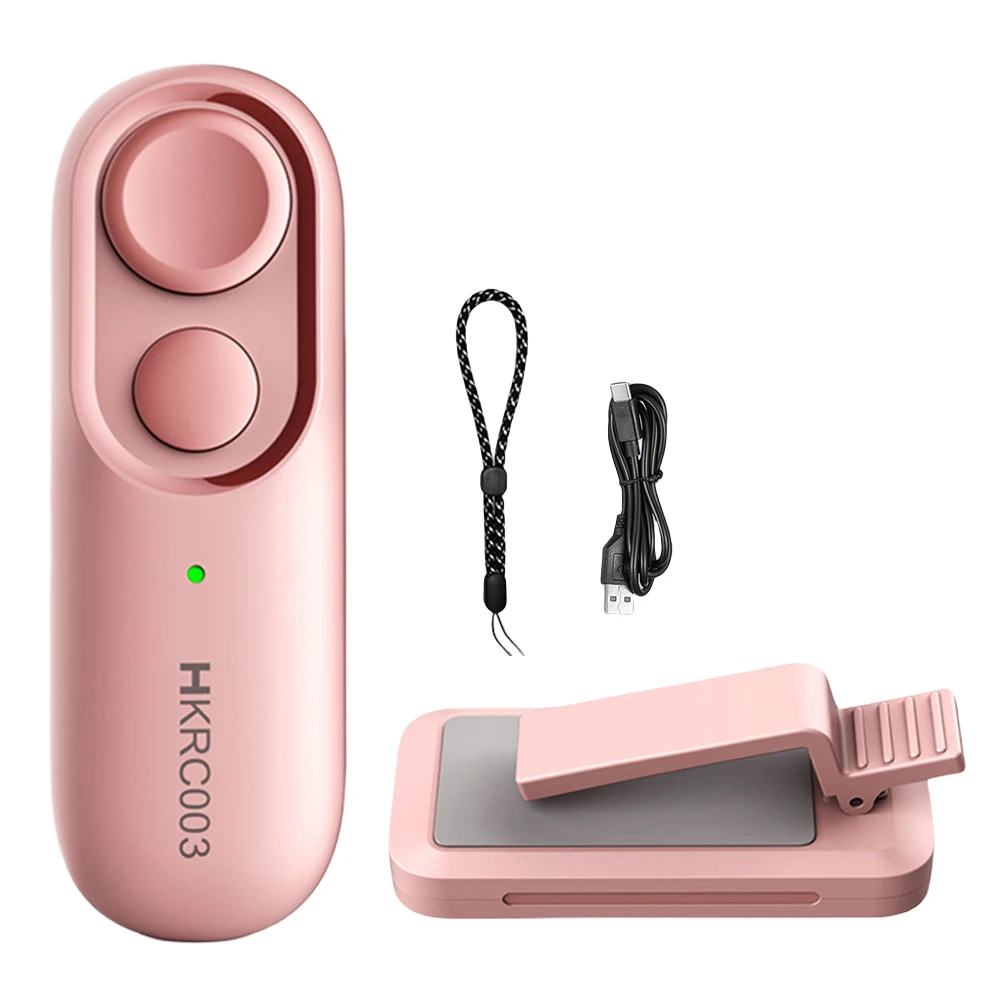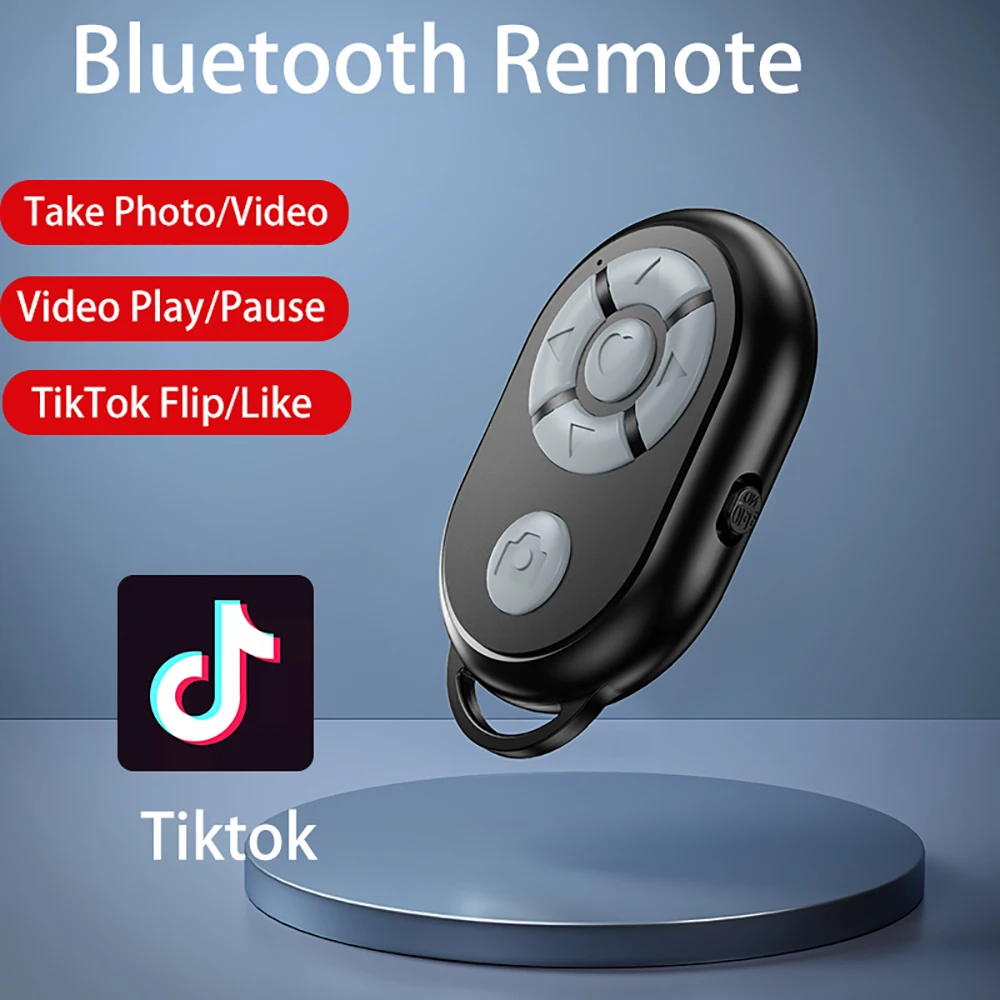
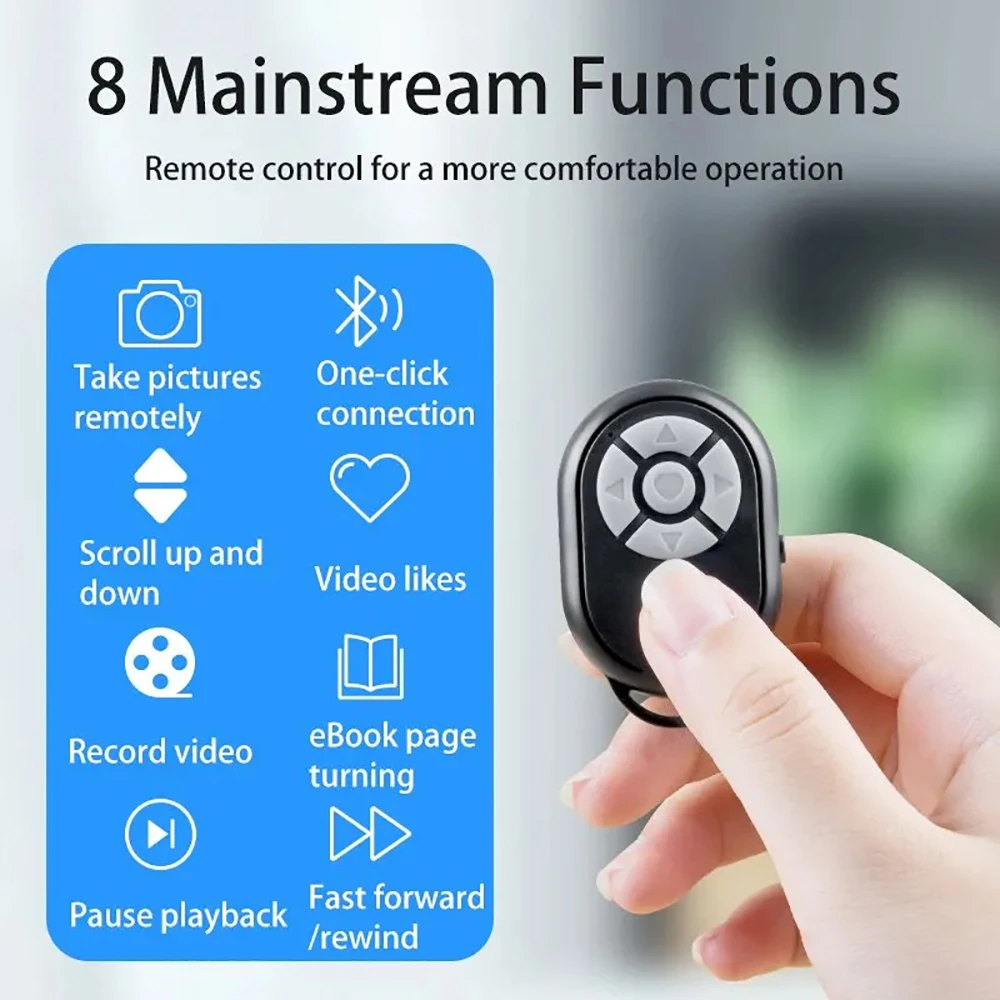
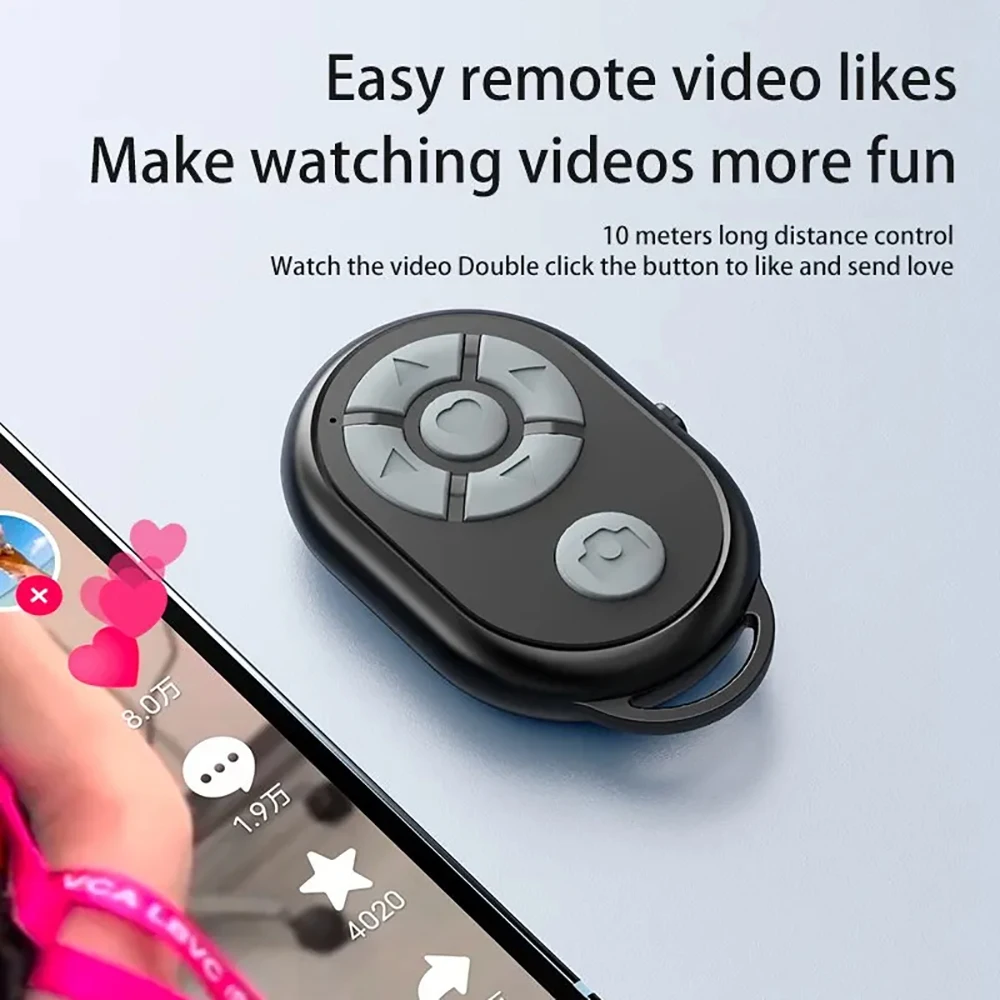
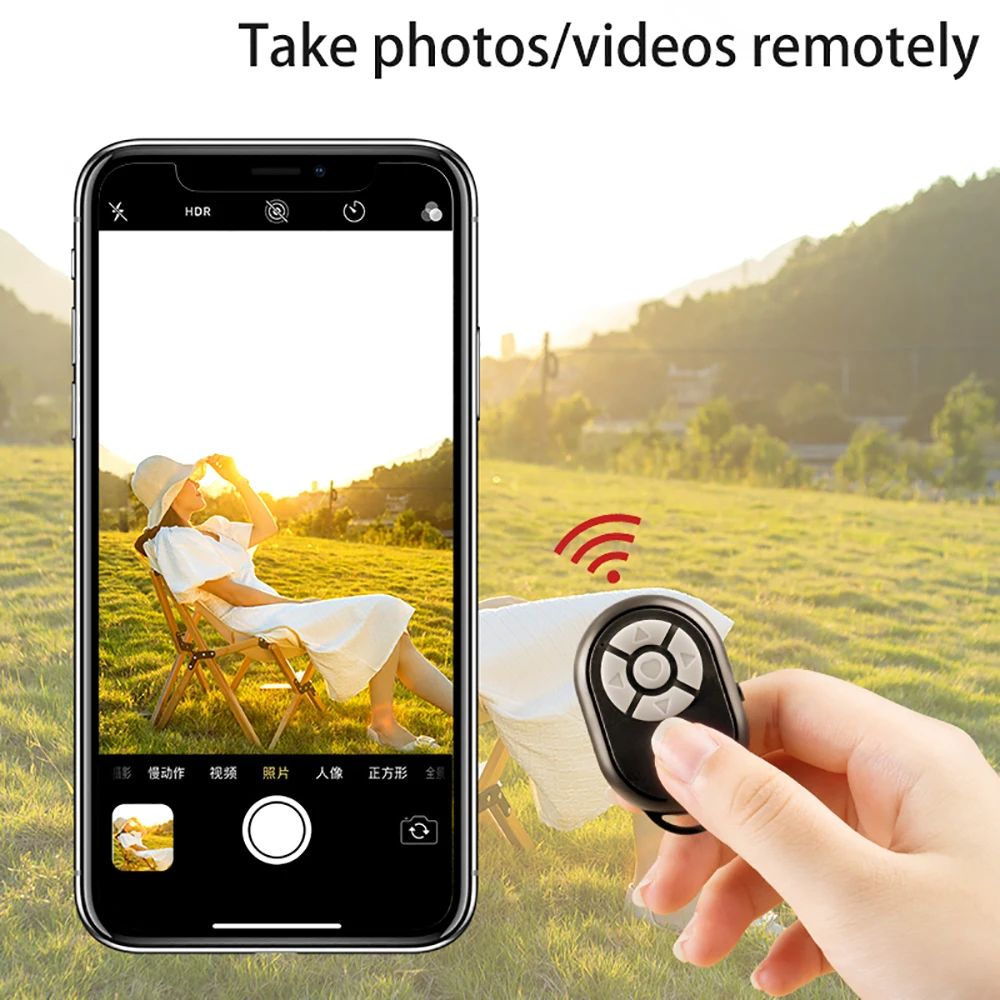
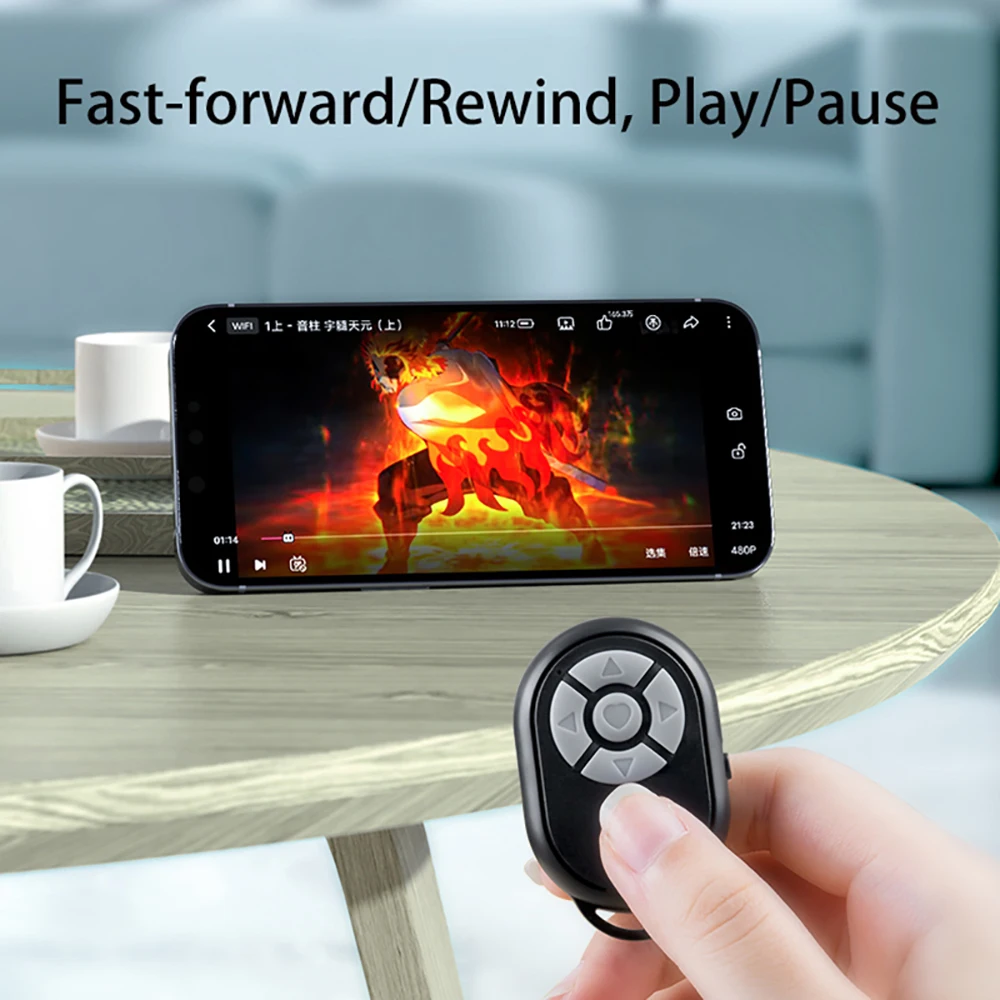
Soft key Bluetooth multifunctional button For iPhone Xiaomi IOS Android Phone Remote Control Selfie Stick Bluetooth Controller
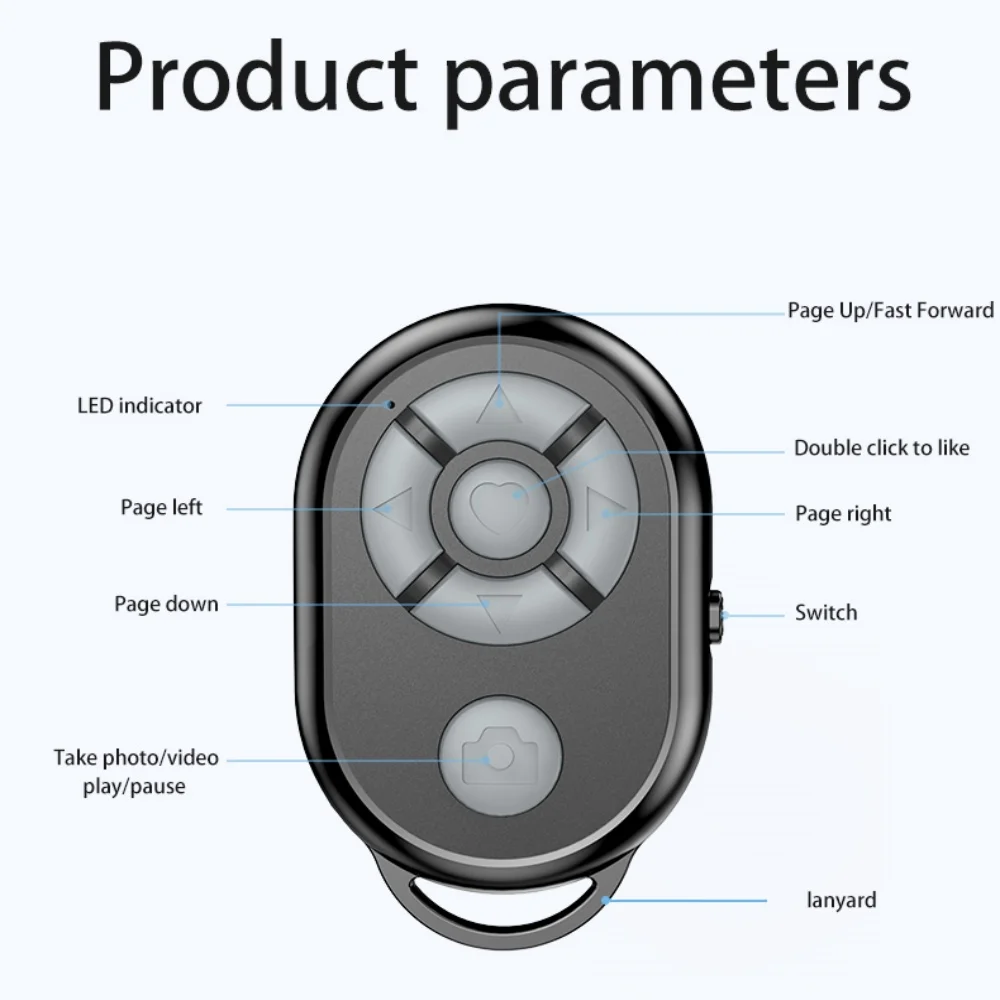
<div class="detailmodule_html"><div class="detail-desc-decorate-richtext"><p style="text-align:center" align="center"><span><strong><span style="font-size:28px">Soft key Bluetooth multifunctional button For iPhone Xiaomi IOS Android Phone Remote Control Selfie Stick Bluetooth Controller</span></strong></span></p><p>Instructions for use:<br/><br/>1. Turn on the side switch of the remote control, the indicator light of the remote control will start flashing<br/><br/>2. Turn on the Bluetooth function of the mobile phone<br/><br/>3. Search and match the remote control name<br/><br/>4. The connection is successful. The light stops flashing<br/><br/>Notice:<br/><br/>1. If some iPhones cannot be controlled, you need to turn on the auxiliary functions (Settings - Accessibility - Touch - Assistive Touch - On), and the IOS15 system needs to turn on (Execute Touch Gestures) in (Auxiliary Control) to set (Tracking Sensitivity) Adjust to more than half of the position.<br/><br/>2. Due to the different screen sizes of mobile phones, individual mobile phones need to set the focus touch point when taking pictures (long press the camera button and do not release it, and adjust the touch point by the up, down, left and right keys)<br/><br/>3. If it cannot be connected, or it cannot be used normally after connecting, delete the connection first, turn off the power and restart the remote control, and then re-match, that's it</p><div><br/></div><p></p><div><p style="text-align:left;margin:0px;margin-bottom:0px;margin-top:0px;margin-left:0px;margin-right:0px" align="left"></p></div></div></div><p><br/></p>
$12.425
$7.01
- Category : Consumer Electronics
- Brand : boutique_phone_accessories_store Boutique Phone Accessories Store
Colors
Sizes
-
+

<div class="detailmodule_html"><div class="detail-desc-decorate-richtext"><p style="text-align:center" align="center"><span><strong><span style="font-size:28px">Soft key Bluetooth multifunctional button For iPhone Xiaomi IOS Android Phone Remote Control Selfie Stick Bluetooth Controller</span></strong></span></p><p>Instructions for use:<br/><br/>1. Turn on the side switch of the remote control, the indicator light of the remote control will start flashing<br/><br/>2. Turn on the Bluetooth function of the mobile phone<br/><br/>3. Search and match the remote control name<br/><br/>4. The connection is successful. The light stops flashing<br/><br/>Notice:<br/><br/>1. If some iPhones cannot be controlled, you need to turn on the auxiliary functions (Settings - Accessibility - Touch - Assistive Touch - On), and the IOS15 system needs to turn on (Execute Touch Gestures) in (Auxiliary Control) to set (Tracking Sensitivity) Adjust to more than half of the position.<br/><br/>2. Due to the different screen sizes of mobile phones, individual mobile phones need to set the focus touch point when taking pictures (long press the camera button and do not release it, and adjust the touch point by the up, down, left and right keys)<br/><br/>3. If it cannot be connected, or it cannot be used normally after connecting, delete the connection first, turn off the power and restart the remote control, and then re-match, that's it</p><div><br/></div><p></p><div><p style="text-align:left;margin:0px;margin-bottom:0px;margin-top:0px;margin-left:0px;margin-right:0px" align="left"></p></div></div></div><p><br/></p>
Related Product
Browse The Collection of Top Products.